
Best Dictation Software for Seniors (Free and Paid, 2026)
Best dictation software for seniors: the free tools on iPhone, Android, Mac and Windows come first, then Blip AI, Wispr Flow, Willow and Dragon compared.
Quick answer: Start free: the keyboard microphone on iPhone or Android, Dictation on a Mac, or Windows key + H on a PC. On a computer, our pick is Blip AI (we make it): hold one key and talk in any app, or say "Hey Blip" to draft an email. Seniors 60+ get 50% off Pro's first year.
We build Blip AI, so read our pick with that in mind. Below are the criteria we used, every option side by side, and who should pick something else. Prices were checked on each vendor's own page on November 18, 2026.
If you're setting up dictation for a parent rather than choosing an app, start with our step-by-step guide to voice typing for seniors. This page is the buying guide.
How we chose the best dictation software for seniors
An older adult who isn't a confident typist needs different things from a busy professional. We judged every option on five things:
- Setup. How many steps before the first sentence appears, and whether it's already on the device.
- Punctuation without saying "comma". Most people would rather not learn spoken commands, so tools that add commas and full stops by themselves win here.
- Works where they write. Email, texts, Facebook, a letter in Word. A tool that only works in one app means learning a second tool later.
- Price. Free first. For paid apps, the list price and any discount for seniors.
- Phone and computer. If they write on a phone and on a computer, one tool for both means one thing to learn.
Free built-in tools come first in the list below, because for many seniors they're enough and cost nothing. Paid apps follow in the order we'd suggest them for a senior on a computer.
The best dictation software for seniors, compared
| Option | Devices | Price (checked Nov 18, 2026) | Adds punctuation by itself | Works in |
|---|---|---|---|---|
| Apple Dictation | iPhone, iPad, Mac | Built in | Yes, in supported languages | Anywhere you can type |
| Gboard voice typing | Android | Built in | You say "comma", "question mark" | Most places you can type |
| Windows voice typing | Windows | Built in, needs internet | Optional setting | Any text box |
| Google Docs voice typing | Chrome, Edge, Safari | Free with a Google account | You say "period", "comma" | Google Docs (and speaker notes in Slides) |
| Blip AI | Mac, Windows, Linux, iPhone, Android | Free: 2,000 words a month. Pro: $15 a month, or $12 a month billed yearly; 50% off the first year for 60+ | Yes | Any app with a text field |
| Wispr Flow | Mac, Windows, iPhone, Android | Free plan with a weekly limit. Pro: $15 a month, or $12 a month billed yearly | Yes | Every app on the computer |
| Willow Voice | Mac, Windows, iPhone (Android "coming soon") | Free Basic plan. Pro: $15 a month, or $12 with the annual toggle | Yes | Anywhere you type |
| Dragon Professional v16 | Windows only | No price on Nuance's page ("Contact us") | Not checked | Windows apps |
1. Apple Dictation: best for iPhone, iPad and Mac
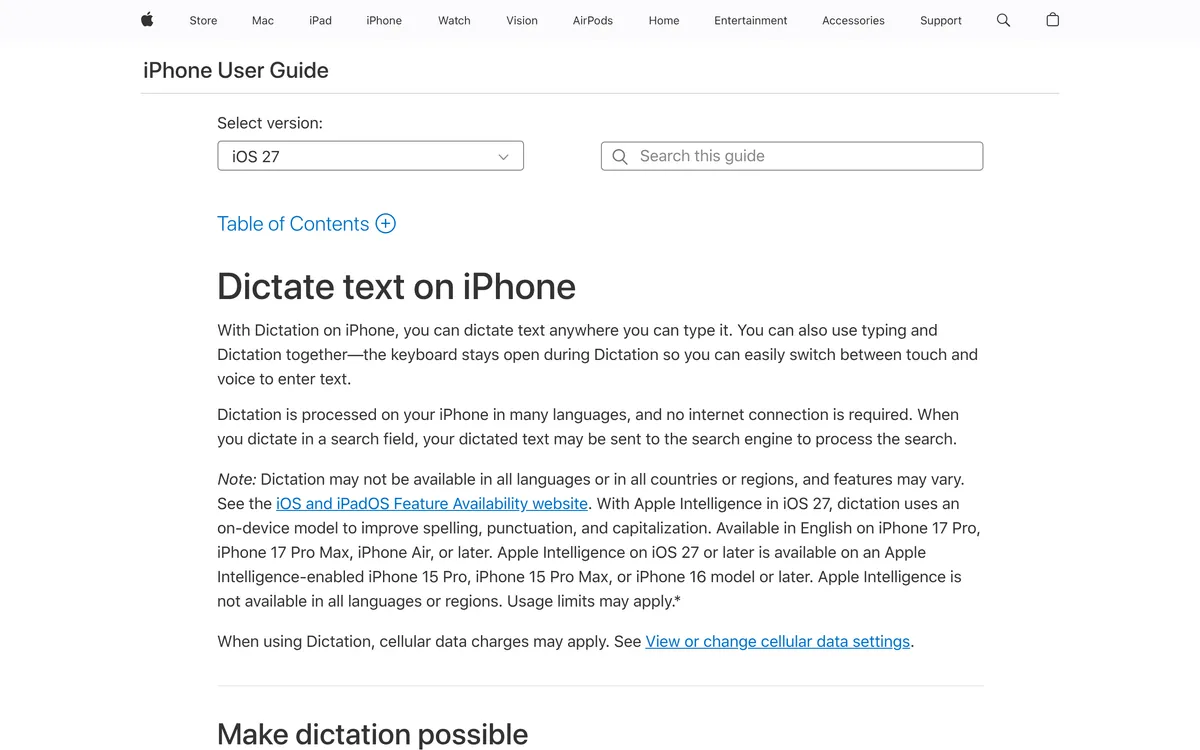 Screenshot of support.apple.com, taken November 18, 2026.
If your parent has an iPhone, they already have one of the best options. Apple's iPhone guide says you turn it on in Settings > General > Keyboard > Enable Dictation, then tap the microphone on the keyboard and talk. Commas, full stops and question marks go in by themselves in supported languages; the switch is Auto-Punctuation in the same Keyboard settings.
Two things to know. Dictation stops after 30 seconds of silence, so a long pause to think ends it. And Apple says dictation runs on the iPhone in many languages with no internet needed, though in a search field the words may be sent to the search engine.
On a Mac, the Mac guide puts it under Apple menu > System Settings > Keyboard > Dictation. Start it with the microphone key, or pick a shortcut such as pressing Fn twice. Apple says you can dictate text of any length without a timeout, but, as on iPhone, it stops after 30 seconds with no speech. It also adds punctuation by itself.
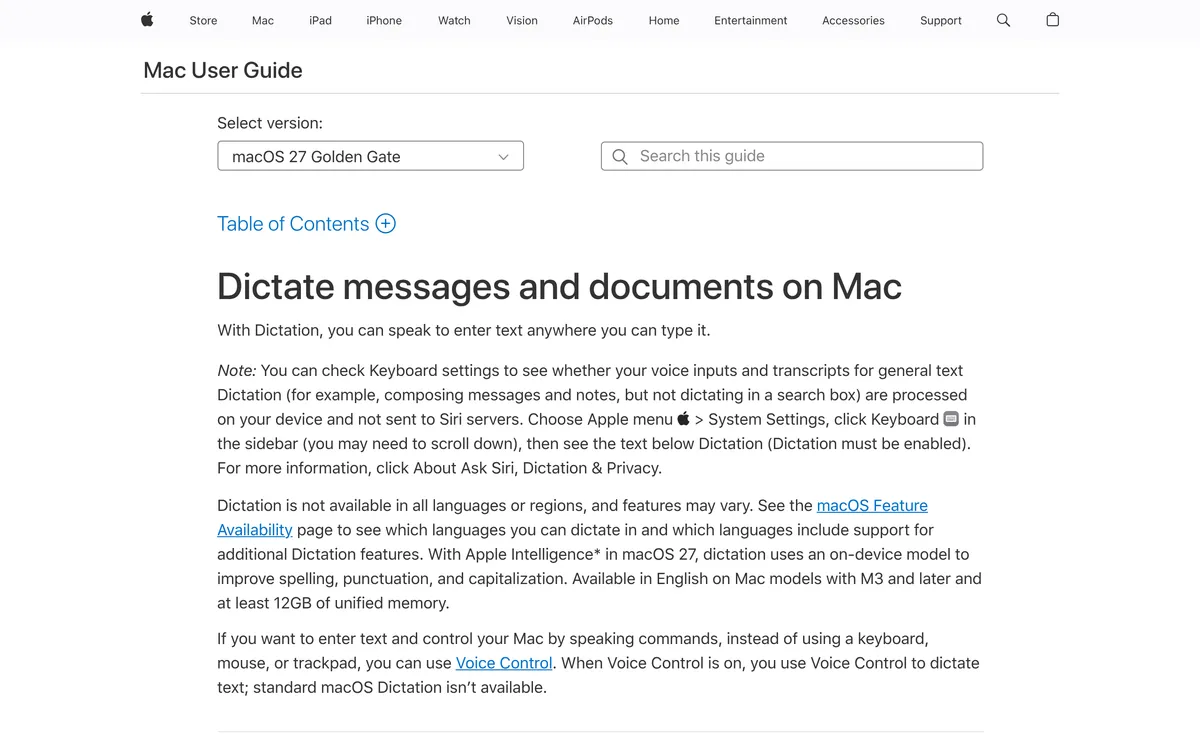 Screenshot of support.apple.com, taken November 18, 2026.
Pick it if: they use Apple devices and mostly write short messages. More detail in our guides to voice to text on iPhone and speech to text on Mac.
2. Gboard voice typing: best for Android phones
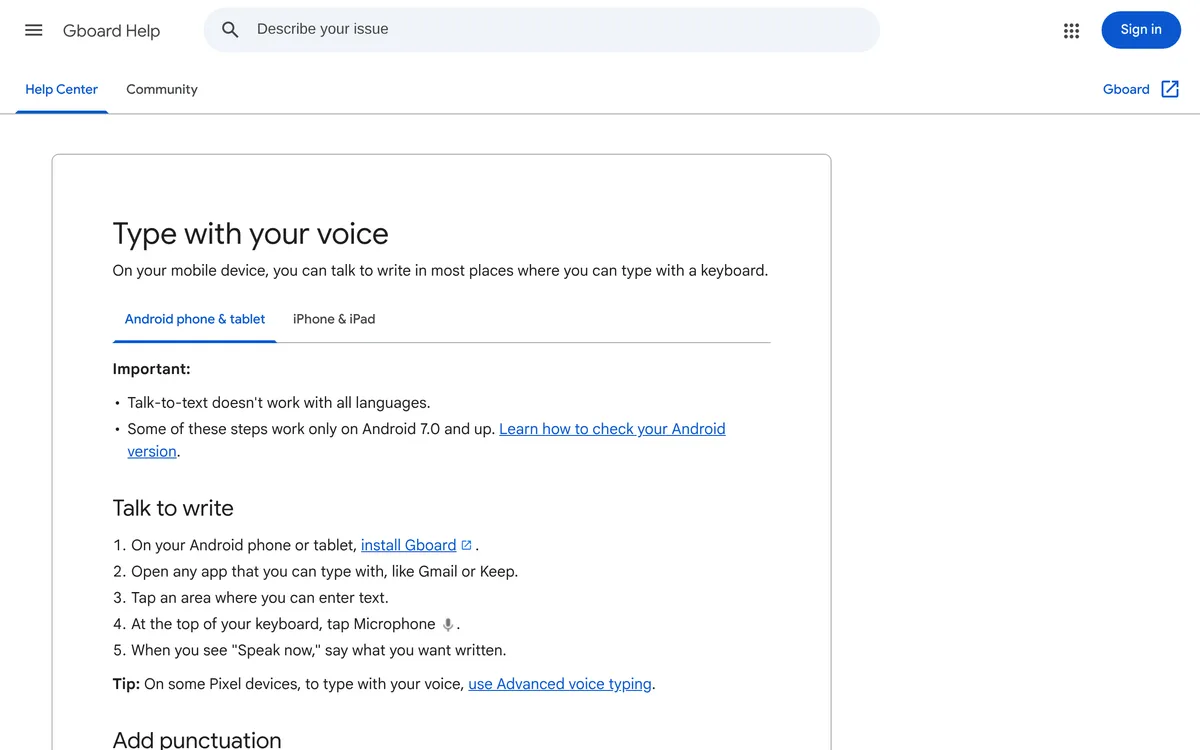 Screenshot of support.google.com, taken November 18, 2026.
If the phone's keyboard is Gboard, Google's help page gives the steps: tap where you want to type, tap the microphone at the top of the keyboard, and talk when you see "Speak now".
Punctuation is spoken on that page: you say "question mark" or "new paragraph", and Google notes this may not work in every language. That's one more thing to learn, so write the few words they need on a card by the phone.
Pick it if: they use an Android phone. Our voice to text on Android guide covers Samsung's keyboard too.
3. Windows voice typing: free on any Windows PC
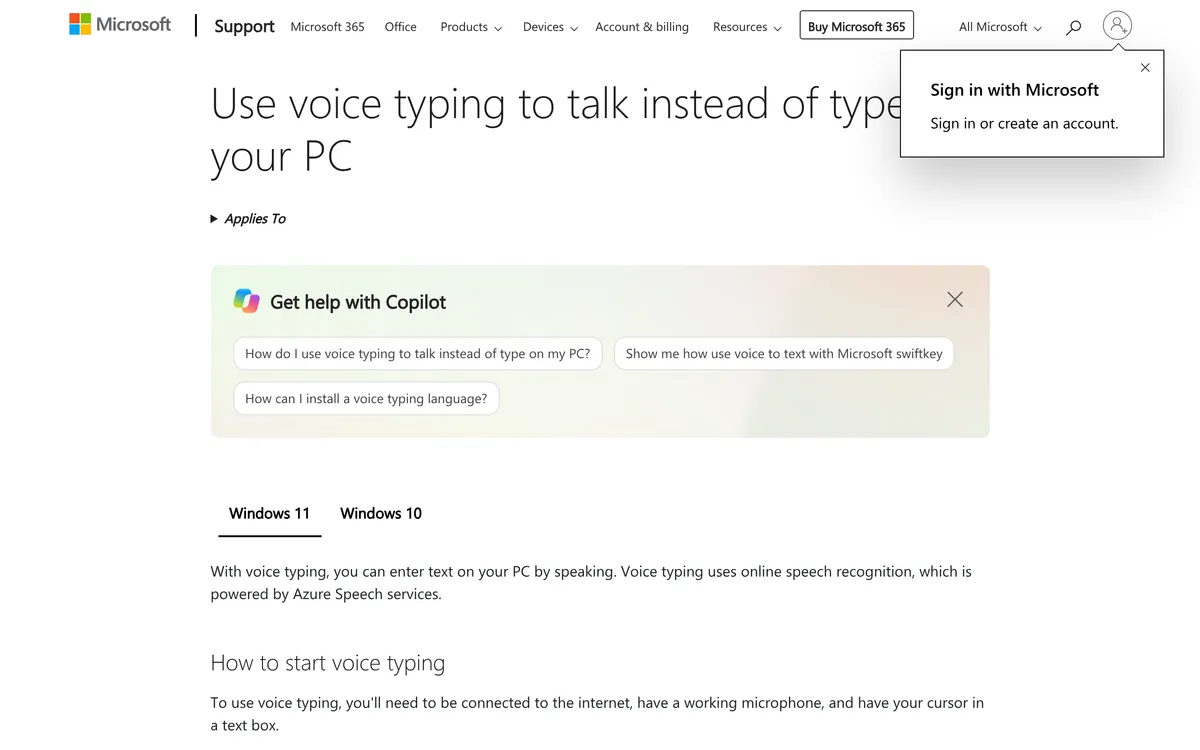 Screenshot of support.microsoft.com, taken November 18, 2026.
On a Windows PC, put the cursor in a text box and press Windows key + H. Microsoft's page says voice typing needs an internet connection and a working microphone. Its settings include Automatic punctuation, so turn that on during setup.
Windows 11 also has Voice Access (version 22H2 or later), under Settings > Accessibility > Speech. It controls the whole PC by voice, opening apps and writing email, and Microsoft says it works without an internet connection. It's more to learn, but it helps someone who finds the mouse hard too.
Pick it if: they have a Windows PC and write the odd email. See our voice to text on Windows guide.
4. Google Docs voice typing: for letters and memoirs in a browser
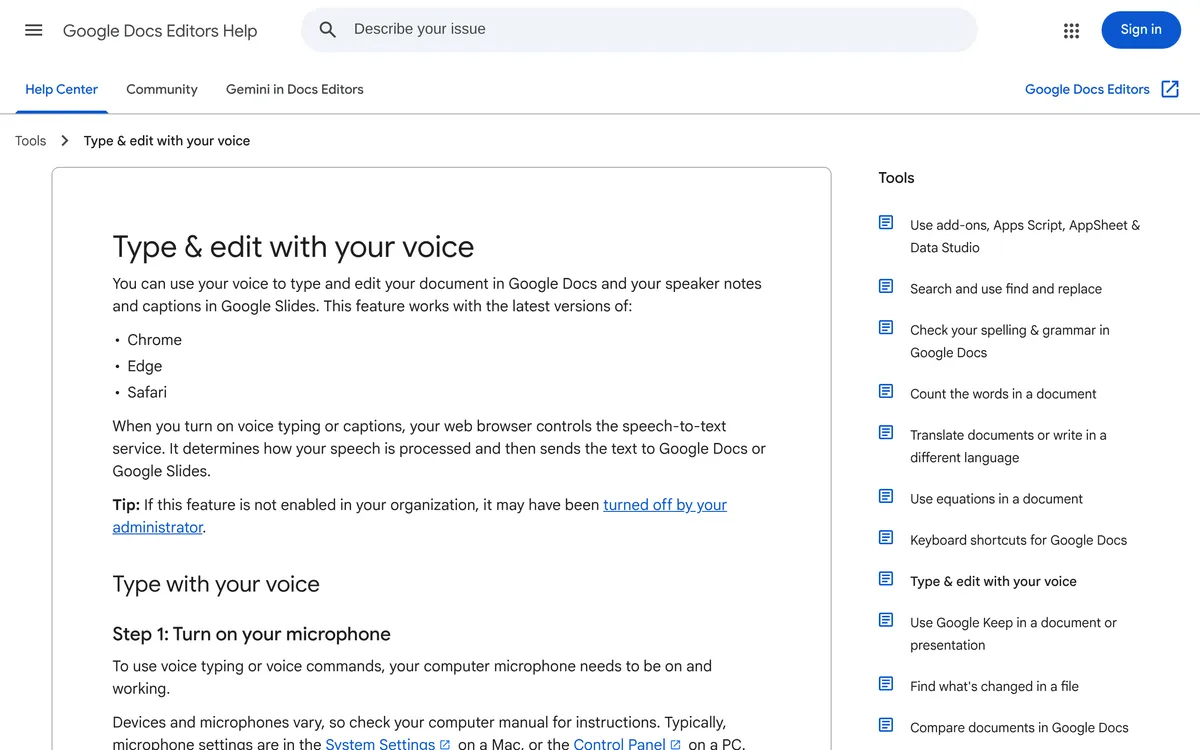 Screenshot of support.google.com, taken November 18, 2026.
In a Google Doc, open Tools > Voice typing and click the microphone. Google's page says it works in the latest Chrome, Edge and Safari. Punctuation is spoken ("period", "comma", "new paragraph"), and the voice commands work only in English.
It types only inside Google Docs (and speaker notes in Slides, through Tools > Dictate speaker notes), not in email. That makes it a good fit for one job: writing a long letter, a family history or a memoir. Our Google Docs voice typing guide has the full steps.
5. Blip AI: our pick for seniors on a computer
 Screenshot of blipai.app, taken November 18, 2026.
The built-in tools type what you say. Blip AI also tidies it up, and that's the part older adults notice. Why it's our pick on a computer:
- One key to remember. Hold Fn on a Mac or Ctrl + Win on Windows and Linux, talk, and let go. The words appear where the cursor is, in any app with a text field: Gmail, Outlook, Facebook in the browser, Word. Add Space to the same keys for hands-free mode, so there's nothing to hold down.
- No "comma" to say. Blip removes "um" and "uh" and fixes the punctuation.
- Emails by describing them. Start with "Hey Blip" and say what the email should do: "Hey Blip, email Priya to say thank you for the flowers and that I'll call on Sunday." Blip drafts the reply instead of typing your words one by one.
- Family names spelled right. Add grandchildren's names, streets and doctors to Blip's dictionary once.
- Phone and computer. The same app runs on Mac, Windows and Linux, and there are iPhone and Android apps.
- A senior discount. Seniors aged 60 and over, and anyone who finds typing hard because of a disability or pain, get 50% off the first year of Pro until December 31, 2026. No proof is asked for.
History is stored on the computer, not on Blip's servers. Blip Cloud is the default, so speech is sent to it to be transcribed; on-device models that work offline come with Pro.
Who should pick something else: on a phone, the free keyboard microphone above is often all they need. And if they'll stay on a free plan, Blip's 2,000 words a month runs out sooner than Wispr Flow's weekly allowance or Willow's free plan.
6. Wispr Flow: a good paid option on Mac, Windows and phones
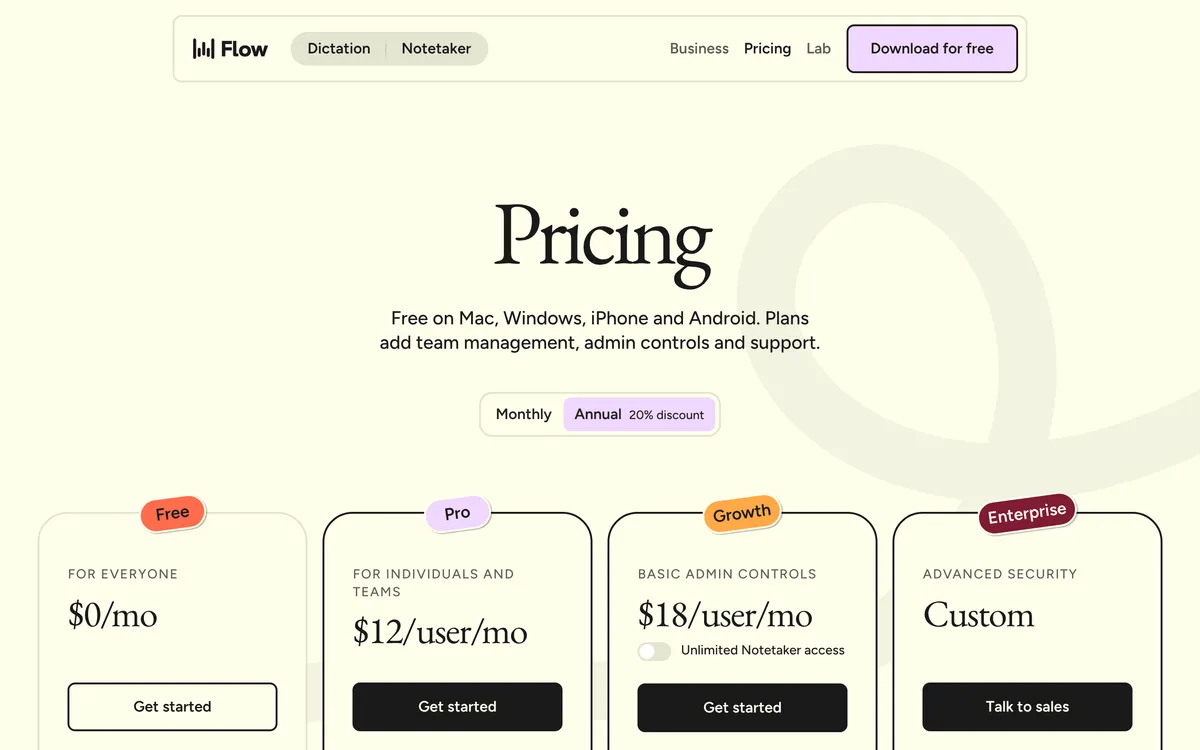 Screenshot of wisprflow.ai, taken November 18, 2026.
Wispr Flow does much of what Blip does. Its home page says it removes filler words, adds punctuation and works in every app on the computer, and it has a personal dictionary for names. Its pricing page lists Mac, Windows, iPhone and Android, and Pro at $15 a month, or $12 a month billed yearly.
The free plan is the strong point. Wispr's help center gives it as a weekly word allowance on Mac and Windows (2,000 words a week when we checked), and says the limit can change. The pricing page lists discounts for students, educators and non-profits, but none for seniors. It has no Linux app.
Pick it if: they want a free plan that goes further each week, or you already use Wispr Flow and can help them with it.
7. Willow Voice: unlimited free dictation on a smaller model
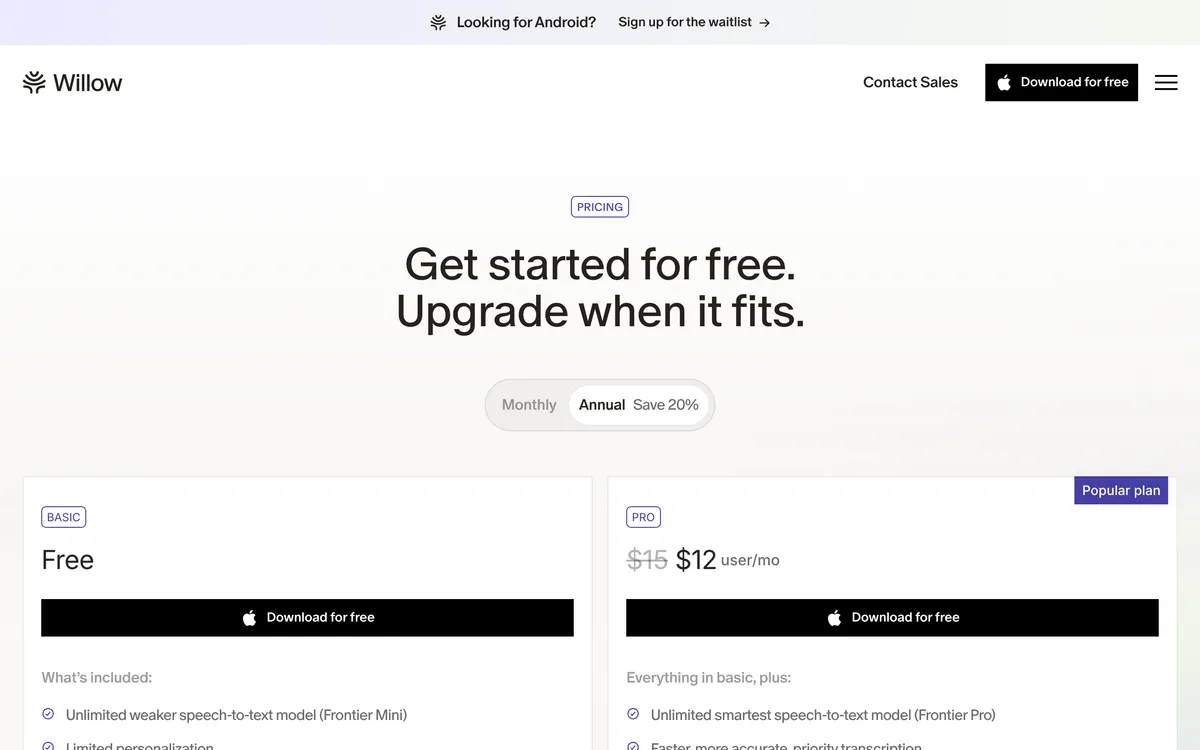 Screenshot of willowvoice.com, taken November 18, 2026.
Willow Voice says it removes filler words, fixes punctuation and works in any app. Its pricing page gives the free Basic plan unlimited use of a "weaker" speech model, and Pro at $15 a month, or $12 with the annual toggle. The page lists discounts for students, educators, nonprofits and veterans, not seniors. Willow runs on Mac, Windows and iPhone; its download page lists Android as "coming soon".
Pick it if: they want unlimited free dictation on a Mac or Windows PC and don't need Android.
8. Dragon Professional: powerful, but built for business
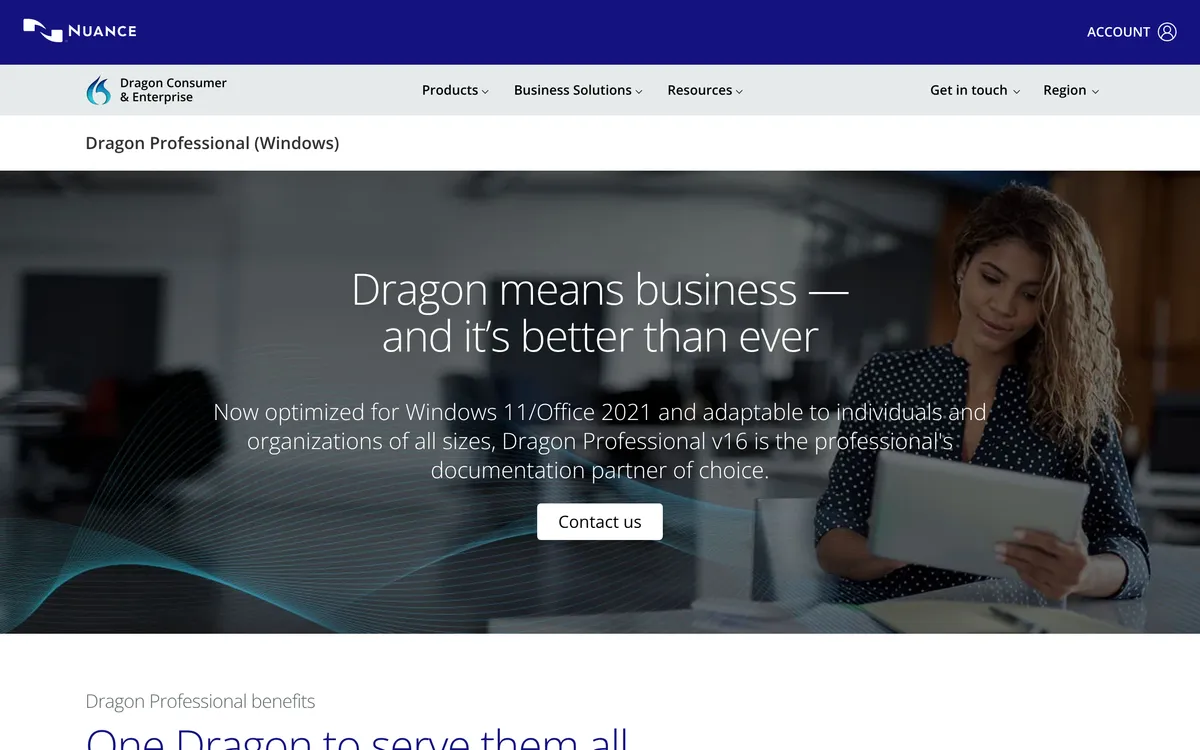 Screenshot of nuance.com, taken November 18, 2026.
Dragon is the name many people know from years ago. Today Nuance's Dragon page lists business editions (Professional, Legal and Law Enforcement, the cloud Professional Anywhere and Legal Anywhere, and Dragon Anywhere Mobile) and no Home edition. Dragon Professional v16 runs on Windows 11 and Windows 10, and the page shows a "Contact us" button instead of a price.
For a senior writing emails and letters at home, that's a lot of software to buy and learn. The free Windows tools above, or one of the apps here, are easier. We compare it in more depth on our Dragon alternative page.
Pick it if: they already own Dragon and know its commands well.
Which dictation software should a senior use?
- iPhone or iPad: Apple Dictation. It's free, adds punctuation by itself and needs no extra app.
- Android phone: Gboard's microphone, with a card listing the punctuation words.
- Mac or Windows, short emails now and then: the free built-in Dictation or Windows key + H.
- Mac, Windows or Linux, writing most days: Blip AI, our pick. One key in every app, tidy text without spoken commands, emails drafted from a description, and 50% off the first year for seniors.
- Wants a bigger free allowance: Wispr Flow or Willow Voice.
- A long letter or memoir in a browser: Google Docs voice typing.
Make the screen easier while you set it up
Dictation fixes the typing. Larger text fixes the reading back, which matters just as much before pressing send.
- iPhone: Apple's text size page gives Settings > Accessibility > Display & Text Size > Larger Text.
- Mac: Apple menu > System Settings > Accessibility > Display > Text size, per Apple's Mac guide.
- Windows 11: Start > Settings > Accessibility > Text size, per Microsoft.
If sore or stiff hands are the reason for dictating, our guide to voice typing for arthritis covers keyboard settings that help too.
FAQ
What is the best dictation software for seniors? The free dictation built into their phone or computer comes first: Apple Dictation on iPhone and Mac, Gboard on Android, Windows key + H on a PC. For writing on a computer most days, our pick is Blip AI (we make it): one key in any app, punctuation without spoken commands, and 50% off the first year of Pro for seniors 60 and over.
Is there free dictation software for seniors? Yes. Apple Dictation, Gboard voice typing, Windows voice typing and Google Docs voice typing are all built in or free with a Google account. Paid apps have free plans too: Blip AI includes 2,000 words a month, Wispr Flow a weekly word allowance, and Willow Voice unlimited dictation on its smaller speech model.
What is the easiest voice typing app for an older person who isn't good with technology? The microphone on the phone's keyboard, because it's already there: tap it and talk. On iPhone, Apple Dictation also adds the punctuation. On a computer, an app with one hold-to-talk key, like Blip AI, means only one thing to remember.
Is Dragon still available for home users? Nuance's Dragon page lists business editions (Professional, Legal, Law Enforcement, the Anywhere cloud editions and Dragon Anywhere Mobile) and no Home edition. Dragon Professional v16 runs on Windows only, and its page asks you to contact Nuance instead of showing a price.
Do dictation apps offer a senior discount? Blip AI gives seniors 60 and over 50% off the first year of Pro until December 31, 2026. Wispr Flow's and Willow's pricing pages list discounts for students, educators and non-profits (Willow adds veterans) but not for seniors, as of November 18, 2026.
Does voice typing work for someone with a quiet or shaky voice? It works best with clear, steady speech, so speak at a normal volume, close to the microphone, in a quiet room. Parkinson's UK describes how Parkinson's can make the voice quieter and softer, and says a speech and language therapist can help make everyday communication easier. Our voice typing for seniors guide covers what helps, including speech therapy and simpler phone screens.