
Speech to Text on Mac: Turn On Dictation (and Its Limits)
Speech to text on Mac: turn on Dictation in System Settings > Keyboard, start it with a shortcut, and dictate where you type. Commands, limits and upgrades.
Quick answer: To use speech to text on a Mac, open System Settings > Keyboard and turn on Dictation. Click into any text field, then press the Microphone key, your Dictation shortcut, or choose Edit > Start Dictation. Speak and macOS types it. Press Esc to stop. It's built in and free.
Every step below comes from Apple's Dictation guide for Mac, which we read on October 26, 2026. We build Blip AI, a dictation app, so the last sections say when the built-in tool is enough and when it isn't.
How to turn on speech to text on a Mac
- Open System Settings. Choose the Apple menu, then System Settings.
- Click Keyboard in the sidebar. You may need to scroll down.
- Turn on Dictation under the Dictation section, then click Enable. If your Mac asks to share audio recordings, you can choose Share Audio Recordings or Not Now.
- Click where you want to type. A note, an email, a document, a chat box.
- Start dictating. Press the Microphone key if your keyboard has one, press the Dictation keyboard shortcut, or choose Edit > Start Dictation in the app's menu bar.
- Stop with Esc, the Microphone key, or the same shortcut.
Apple's page doesn't name one default shortcut. In the Dictation settings, the Shortcut pop-up menu lets you pick one, including Press Fn (Function) Key Twice, or choose Customize and press your own keys (Apple's example is Option-Z). Press and release the Microphone key to start Dictation; holding it starts Siri instead.
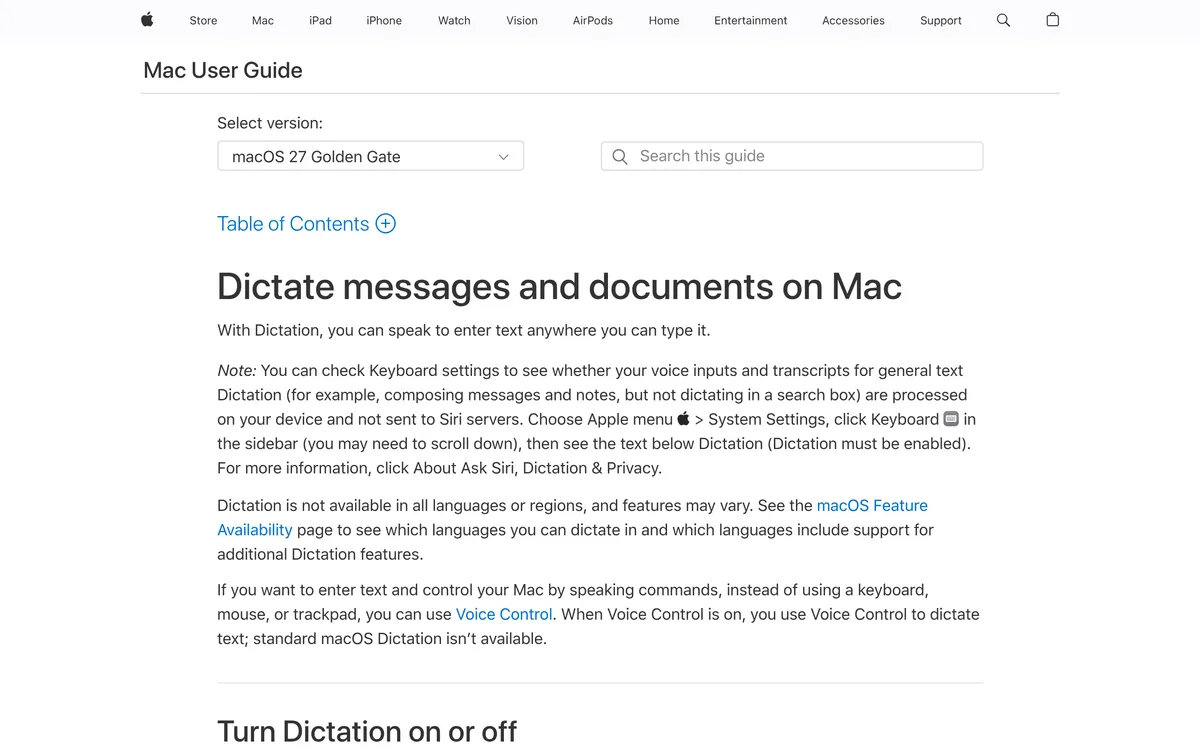 Screenshot of support.apple.com, taken October 26, 2026.
Apple says that with Dictation "you can speak to enter text anywhere you can type it", so it works across apps. The search-box exception is covered below. For Google Docs, which has its own voice typing, see voice typing in Google Docs.
Mac Dictation commands and punctuation
Say these while Dictation is listening. They come from Apple's page.
| To do this | Say |
|---|---|
| Add punctuation | The mark's name, such as "exclamation mark" |
| Start a new line | "New line" (one Return) |
| Start a new paragraph | "New paragraph" (two Returns) |
| Insert an emoji | Its name, such as "heart emoji" |
In supported languages, Dictation also adds commas, periods and question marks on its own. You can turn that off in Keyboard settings under Dictation.
On Apple silicon Macs you can keep typing while you speak, per Apple. Ambiguous words are underlined in blue: click one to pick an alternative.
Limits of Mac Dictation
Apple's page is honest about these, and they're what push people to look for something else.
- The 30 seconds is about silence, not length. Apple says you can "dictate text of any length without a timeout", but Dictation "stops automatically when no speech is detected for 30 seconds". Pause to think for half a minute and it quits.
- Languages vary. Apple says Dictation "is not available in all languages or regions, and features may vary", and links a feature availability page. You can add several languages and switch between them while dictating.
- Search boxes are different. Apple's privacy note says general text dictation (messages, notes) can be processed on your device and not sent to Siri servers, "but not dictating in a search box". Check the text under Dictation in Keyboard settings to see what your Mac does.
- Voice Control turns it off. Apple's Voice Control page says that when Voice Control is on, you dictate with Voice Control and "standard macOS Dictation isn't available".
Voice Control or Dictation?
Use Dictation to type text with your voice. Use Voice Control, in Accessibility settings, when you can't use a keyboard, mouse or trackpad and need to navigate and click by voice too. Apple describes it as speaking commands "to navigate the desktop and apps, interact with what's on the screen, dictate and edit text". It does more, and it's more to learn.
Is Dictation enough? When to use an app
Built-in Dictation is enough for a quick note or a short message. It's free, and nothing to install. Look at an app when:
- you dictate for long stretches and the silence timeout keeps interrupting you;
- you want the text cleaned up, not typed word for word;
- you want the same tool on Windows, Linux and your phone.
Here is how we'd put it, for a Mac:
| macOS Dictation | Blip AI | |
|---|---|---|
| Cost | Free, built in | Free plan with 2,000 words a month; Pro $15/mo or $12/mo billed yearly (as of October 26, 2026) |
| Start | Your Dictation shortcut or Microphone key | Hold Fn, speak, let go |
| Works in | Anywhere you can type, per Apple | Any app with a text field |
| Cleanup | Dictation itself adds punctuation in supported languages | Removes filler words, fixes punctuation and formatting |
| Drafting replies | Dictation types what you say | Action Mode: say "Hey Blip" and describe the reply you want |
| Other platforms | Apple devices | Mac, Windows, Linux, iOS, Android |
| Processing | General text can be processed on your device; check Keyboard settings (see above) | Blip Cloud by default; downloadable on-device models on Pro |
If Dictation is working for you, keep it. If you want to try before installing anything, the free speech to text tool runs in your browser (Chrome, Edge or Safari) and gives you the raw transcript.
How to speech-to-text on a Mac faster with Blip AI
Download Blip AI for Mac (macOS 11 or later, Apple Silicon and Intel). Click into any text field, hold Fn, speak, and let go. Blip types the cleaned-up text where your cursor is. To keep talking without holding the key, add Space, so Fn + Space.
Speaking is faster than typing. In a study of phone typing by Stanford and University of Washington researchers, speech was 2.93 times faster than typing on a phone (153 against 52 words a minute). Our post on whether voice typing is faster than typing goes through the research. If you're weighing Blip against other Mac apps, our comparison pages lay out the differences. On Windows, see voice to text on Windows.
FAQ
How do I do speech to text on a Mac? Open System Settings > Keyboard, turn on Dictation, click into a text field and press your Dictation shortcut or the Microphone key. Press Esc to stop.
What is the keyboard shortcut for dictation on a Mac? Apple's guide doesn't name one default. Press and release the Microphone key if you have one, or pick a shortcut (such as pressing Fn twice) or set your own under System Settings > Keyboard > Dictation.
Does Mac Dictation have a time limit? Not on length. Apple says you can dictate text of any length without a timeout, but it stops after 30 seconds with no speech detected.
Is Mac Dictation processed on my device? Apple says general text dictation can be processed on your device and not sent to Siri servers, but not in a search box. Apple's page doesn't say whether it works without an internet connection. Your Keyboard settings show what your Mac does.
How do I add punctuation when dictating on a Mac? Say the mark's name, like "exclamation mark", or say "new line" or "new paragraph". In supported languages Dictation adds commas, periods and question marks itself.
Is there a free speech to text option besides Dictation? Yes. Blip AI has a free plan with 2,000 words a month, and our browser tool needs no install.