
Assistive Technology for Dyslexia: Tools for Adults at Work
Assistive technology for dyslexia at work: dictation, read-aloud, spelling tools and reading pens, the free ones on your devices, and who can pay for more.
Quick answer: Assistive technology for dyslexia is any tool that takes over the reading, spelling or planning that dyslexia slows down. For adults at work, start with dictation (speech to text), read-aloud (text to speech) and a spelling checker. Dictation and read-aloud are free on Windows, Mac, iPhone, Android and Chromebooks, and employers or grants often pay for more.
What is assistive technology for dyslexia?
Assistive technology (AT) is a tool that helps you do a task you'd otherwise find hard. For dyslexia, that means tools that read text to you, type what you say, catch spelling mistakes or help you plan before you write. The Job Accommodation Network (JAN), a free US advice service, lists speech recognition, screen reading software, word prediction, reading pens and proofreading help among the work accommodations for learning disabilities.
This isn't a niche need. The British Dyslexia Association says ten percent of the population are believed to be dyslexic. But most of what you find when you search this topic is written for children and schools. This guide is for adults with a job: emails, reports, chat messages and long documents.
I'm dyslexic, and I build Blip AI, a dictation app, so I'm biased toward dictation. I'll say where other tools do a better job.
The main kinds of assistive technology for dyslexia
Each kind of tool fixes a different part of the problem. Pick by the task that costs you the most time.
| Kind of tool | What it helps with at work | Free options | Paid examples |
|---|---|---|---|
| Speech to text (dictation) | Emails, messages, first drafts, notes | Built-in dictation on every device (steps below) | Read&Write for Work, AI dictation apps such as Blip AI |
| Text to speech (read-aloud) | Long documents, and checking your own writing | Read aloud in Edge, Speak selection on Mac, Speak Screen on iPhone, Select to Speak on Android and Chromebooks | Read&Write for Work |
| Spelling, grammar and word prediction | Typed text, forms, chat | Microsoft Editor, Grammarly Free | Grammarly Pro, Read&Write for Work |
| Mind mapping and planning | Reports, proposals, slides | Paper or a whiteboard | MindView |
| Reading aids for paper | Letters, forms, printed manuals | iPhone Magnifier | C-Pen Reader 2 |
Speech to text turns what you say into typed text. If you can say a sentence more easily than you can spell it, this is often the biggest win for writing. Built-in dictation is getting better at cleanup, too. Fluid dictation on Windows Copilot+ PCs fixes grammar, punctuation and filler words in English. In iOS 27, dictation in English on iPhone 17 Pro, iPhone 17 Pro Max, iPhone Air or later uses an on-device model to improve spelling, punctuation and capitals. Our guide to dictation for dyslexia covers how to dictate well.
Text to speech reads text aloud. Many tools, including Speak selection on Mac and Select-to-speak on Chromebooks, highlight each word as it's spoken. Use it for long reports and to check your own writing: AbilityNet, a UK disability and technology charity, points out it's easier to hear a mistake than to see it. The evidence is real but modest. A meta-analysis of 22 studies found that text to speech helped reading comprehension for students with reading disabilities, with an average effect size of 0.35. The studies ran from grade 3 up to college students and adults.
Spelling, grammar and word prediction tools flag mistakes as you type and suggest the word you're reaching for. Microsoft Editor is built into the Edge browser, with spelling, grammar and text predictions, and its free tier covers the basics. One thing to know for work: when Editor is selected, Edge sends what you type to Microsoft's cloud, while the Basic setting keeps spellchecking on your device. Grammarly's Free plan also covers spelling and grammar (both checked October 2026).
Mind mapping lets you get ideas down in any order and link them up later. AbilityNet's dyslexia factsheet suggests it for planning documents and reports, and says you can draw one by hand. MindView, a paid tool, exports a map to Word or PowerPoint, so you start from a structure instead of a blank page.
Reading aids for paper read printed text out loud. The C-Pen Reader 2 is a handheld pen that scans printed words or whole paragraphs and reads them aloud, with no phone, computer or internet connection needed. On an iPhone, the Magnifier app can detect text through the camera and read it to you.
Meeting notes are another pressure point. AbilityNet lists taking notes in meetings among the things people with dyslexia can find hard, and JAN's accommodation list for learning disabilities includes note-taking apps, smart pens and voice recorders.
Changing how text looks helps some people too: bigger text, more space between lines, an easier font, or a colored filter to cut screen glare, as AbilityNet suggests. Reading mode in Edge and the iPhone's Accessibility Reader both let you change fonts and colors.
Free assistive technology built into your devices
You already own most of what you need. Here's how to turn on dictation and read-aloud on each platform (steps checked October 2026 on Microsoft, Apple and Google's own help pages):
| Device | Dictation | Read-aloud |
|---|---|---|
| Windows 10 and 11 | Click in a text box and press Windows key + H (Microsoft) | In Edge, open the three-dot menu > More tools > Read aloud, or press F9 on a supported page and select Read aloud (Microsoft) |
| Mac | System Settings > Keyboard, turn on Dictation, then press the Microphone key or your Dictation shortcut (Apple) | System Settings > Accessibility > Read & Speak (Spoken Content on macOS 15 and earlier), turn on Speak selection, then select text and press Option-Esc (Apple) |
| iPhone | Settings > General > Keyboard > Enable Dictation, then tap the microphone on the keyboard (Apple) | Settings > Accessibility > Read & Speak > Speak Screen (Spoken Content on iOS 18 and earlier), turn it on, then swipe down with two fingers from the top (Apple) |
| Android | Tap the Microphone at the top of the Gboard keyboard (Google) | Settings > Accessibility > Select to Speak, turn on the shortcut, then swipe up with two fingers (Google) |
| Chromebook | Settings > Accessibility, turn on Dictation under "Keyboard and text input", then press Search + D (Google) | Settings > Accessibility, turn on Select-to-speak under "Text-to-Speech", then hold Search and drag over the text (Google) |
A few limits are worth knowing before you rely on these:
- Windows voice typing needs an internet connection. In Word, Review > Read Aloud reads a document from your cursor and works in Office 2019, Office 2021 and Microsoft 365. See our guide to voice to text on Windows for more.
- Mac Dictation has no length limit, but it stops after 30 seconds with no speech. Speak selection can highlight each word or sentence as it reads.
- iPhone dictation adds commas, periods and question marks for you in supported languages.
- Android voice typing needs Google's Gboard keyboard installed. Android can also read selected text without Select to Speak: select it, then tap More > Read aloud in the pop-up menu.
- Chromebook Select-to-speak highlights each word as it reads. You can also highlight text and press Search + S.
Which assistive technology should you start with?
Start with the task that costs you the most time, not with the longest feature list:
- If writing is the problem (emails, messages, reports): start with dictation, then use read-aloud to check what you wrote.
- If reading is the problem (long documents, policies, contracts): start with text to speech. Dictation won't help much here.
- If you type fine but misspell: turn on a spelling and grammar checker, and try word prediction.
- If the blank page is the problem: say your ideas out loud into dictation, or sketch a mind map, before you write a single sentence.
- If it's paper: use a reading pen or your phone's camera.
My take: use the free built-in tools for a week before you pay for anything. You'll find out which task they don't cover, and that's the one worth paying for, or asking your employer to pay for. A suite like Read&Write for Work, which bundles text to speech, dictation and word prediction, makes sense when you need several of these at once. Its individual license is $300 a year (checked October 24, 2026).
Two honest limits. Assistive technology doesn't teach you to read or spell; it does the slow part for you. And at work, check where a tool sends your text before you use it on client or company data. Your IT team may have rules about that.
Can your employer pay for assistive technology?
Often, yes. How depends on where you live. All of the details below were checked on the official pages in October 2026.
UK: Access to Work
Access to Work is a government grant that can pay for "specialist equipment and assistive software". Its eligibility page lists dyslexia among the conditions it can cover, as long as it means you need support to do your job, and you don't need a diagnosis to apply. You must be 16 or over, in paid work (or starting within 12 weeks), and live and work in England, Scotland or Wales. Northern Ireland has a separate system. Self-employed people need a turnover of at least £6,500 a year. You don't pay the grant back, and it doesn't affect your other benefits.
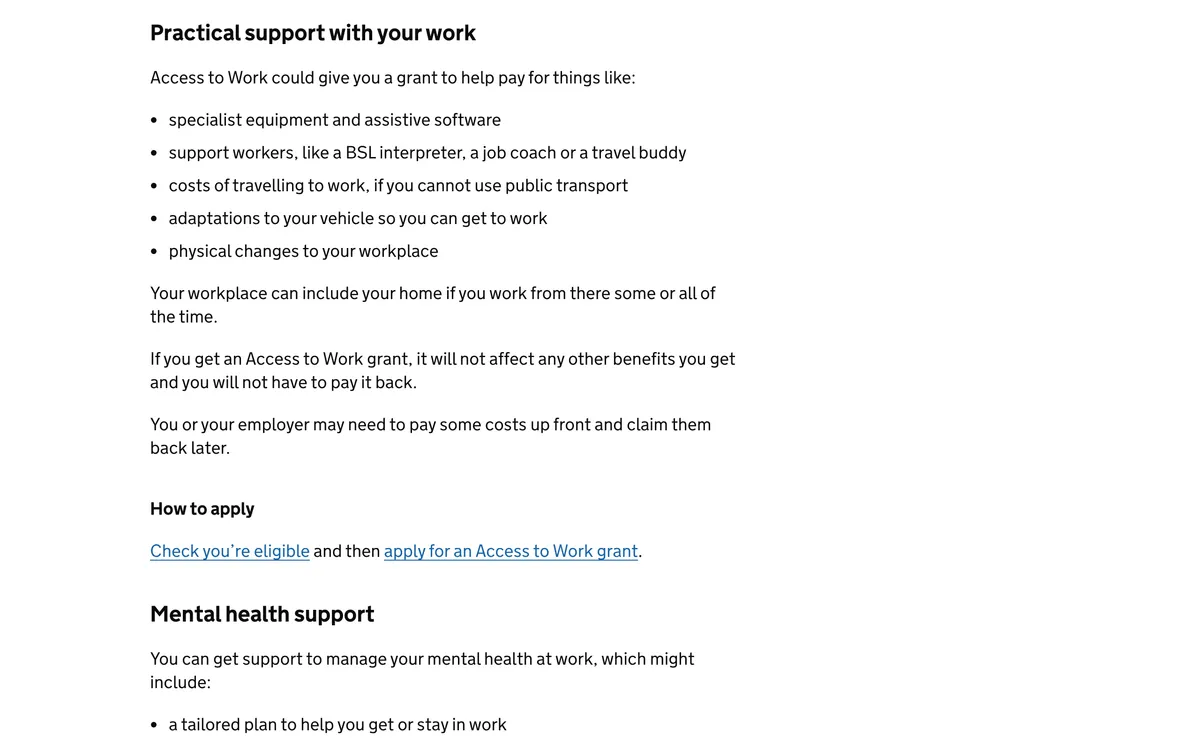 Screenshot of gov.uk, taken October 24, 2026.
Access to Work won't pay for reasonable adjustments. Those are changes your employer must make by law so a disabled worker isn't at a substantial disadvantage, and they can include changing your equipment. Under the Equality Act 2010, you count as disabled if a condition has a "substantial" and "long-term" (12 months or more) negative effect on your normal daily activities.
UK students: Disabled Students' Allowance
If you live in England and qualify for full student finance for a university-level course, the Disabled Students' Allowance can cover specialist equipment and assistive technology training. Its eligibility page gives dyslexia as an example of a specific learning difficulty, and the allowance pays up to £27,783 a year. You'll need a diagnostic assessment from a psychologist or a qualified specialist teacher. If you need a new computer, you pay the first £200. Don't buy anything before your assessment, because it won't be refunded. Students elsewhere in the UK should ask their own student finance body.
US: the ADA and the Job Accommodation Network
The Americans with Disabilities Act (ADA) requires covered employers to provide effective, reasonable accommodations for qualified people with disabilities. Assistive software is a common one: JAN's speech recognition page says people with learning impairments may have trouble using computers and lists dictation tools, including Apple Dictation and Google Docs voice typing.
Most accommodations cost little. In JAN's employer survey (employers who contacted JAN from 2019 to 2024, page updated September 2025), 61% said the accommodation cost nothing, and 33% had a one-time cost with a median of $300. JAN gives free, confidential advice to employees and employers at (800) 526-7234.
US: state assistive technology programs
Every state, Washington DC, Puerto Rico and four US territories run an Assistive Technology Act program, 56 in all. They let you see devices demonstrated, borrow them for a short time to try before you buy, get reused equipment, and in some states take out a loan to buy assistive technology. Many services are free, though some programs charge small fees, such as return shipping on a loan. Find yours in the AT3 Center directory.
Outside the UK and US, ask your HR team or your country's dyslexia association what support exists.
How to ask for assistive technology at work
You don't need to make a legal case. In the US, JAN notes that, according to the EEOC, you don't need legal terms or to mention the ADA when you ask for an accommodation. These steps make a yes more likely anywhere:
- Name the task, not just the diagnosis. "Writing client emails takes me much longer than it should" is easier to act on than "I'm dyslexic".
- Try the free version first. Then you can say which tool helped and what's still missing.
- Name the tool and the price. A specific request with a cost is easier to approve than an open one.
- Ask IT where it sends data. Some tools process text or audio in the cloud. Check that's allowed for the work you do.
- Put it in an email. It gives you a record of what you asked for and when.
In the UK, you apply for Access to Work yourself, and it pays for support beyond the reasonable adjustments your employer has to make. In the US, an employer can ask for documentation when your disability and need aren't obvious. JAN says testing for a learning disability done at 18 or older usually doesn't need repeating.
Where Blip AI fits
Blip AI covers the writing side of this kit. Hold Fn on Mac, Ctrl + Win on Windows or Ctrl + Super on Linux, say what you mean, then let go. Blip types it where your cursor is, with filler words removed and punctuation and formatting fixed, so you're not spelling or punctuating as you go.
What matters most at work:
- It works in any app with a text field, such as Slack, Gmail, Notion or your browser. You don't change how you work.
- Add your hard words once. Put names, products and work terms in Blip's dictionary so they come out right.
- Describe a reply instead of writing it. Start with "Hey Blip" and say what you want, and Action Mode drafts the email or Slack message.
- Set your own rules. In Personalized Blip, write rules like "use British English", and Blip follows them whenever it writes.
- For your IT team: Blip Cloud is the default, and Pro includes on-device models that work offline. Your history is stored on your own device, not on Blip's servers.
Blip runs on Mac, Windows, Linux, iPhone, Android and Chromebooks. Blip is for writing: if reading is your main problem, start with the read-aloud tools above, and use them to check what you dictate either way.
The free plan includes 2,000 words a month. Pro is $15 a month, or $12 a month billed yearly. If dyslexia makes typing hard for you, there's 50% off the first year of Pro until December 31, 2026, and we don't ask for proof. Want to try dictation first without installing anything? Our free speech to text tool runs in Chrome, Edge and Safari (it types the raw transcript, without Blip's AI cleanup). When you're ready, download Blip AI.
FAQ
What is the best assistive technology for dyslexia in adults? There's no single best tool, because it depends on which task dyslexia slows down for you. At work, a good start is dictation for writing and text to speech for reading and checking. Add a spelling checker, and pay for a suite like Read&Write for Work only when the free tools fall short.
Is dictation good for dyslexia? Often, yes. Dictation lets you say words instead of spelling them, and the Job Accommodation Network lists speech recognition software as an accommodation for writing and spelling difficulties. Dictation can mishear names and work terms, so add those to the app's dictionary and listen back with text to speech. Our guide to dictation for dyslexia covers the habits that help.
Can my employer pay for assistive technology? Often, yes. In the UK, an Access to Work grant can pay for assistive software, and dyslexia is one of the conditions it lists. In the US, the ADA requires covered employers to provide reasonable accommodations, and JAN's employer survey found most of them cost nothing.
Is there free assistive technology for dyslexia? Yes. Windows, Mac, iPhone, Android and Chromebooks all include free dictation and read-aloud, so you can try both today without buying anything. In the US, state AT Act programs also lend devices so you can test one before you pay.
Is text to speech good for dyslexia? Yes, though the measured benefit is modest. A meta-analysis of 22 studies found it helped reading comprehension for students with reading disabilities, including college students and adults. It's most useful for long documents and for hearing mistakes in your own writing.
Do I need a dyslexia diagnosis to get assistive technology at work? Not always. UK workers can apply for Access to Work without a diagnosis, though students claiming the Disabled Students' Allowance need a diagnostic assessment. In the US, an employer can ask for documentation when your disability isn't obvious.