
Voice to Text on Windows 11: Win+H, Voice Access, Apps
Voice to text on Windows: press Win + H to voice type (needs internet), or turn on Voice Access to dictate offline on Windows 11. Steps, commands and limits.
Quick answer: To use voice to text on Windows, click into a text box and press Windows key + H. Voice typing starts listening. Say "stop listening" to end. It needs an internet connection. To dictate offline or control the whole PC by voice, turn on Voice Access in Settings > Accessibility > Speech (Windows 11, version 22H2 and later).
Windows has two built-in ways to turn speech into text, and they suit different people. Dictation apps are a third option. We build Blip AI, a dictation app for Windows, so we'll say plainly when the free options are enough.
How to use voice typing on Windows 11 (Win + H)
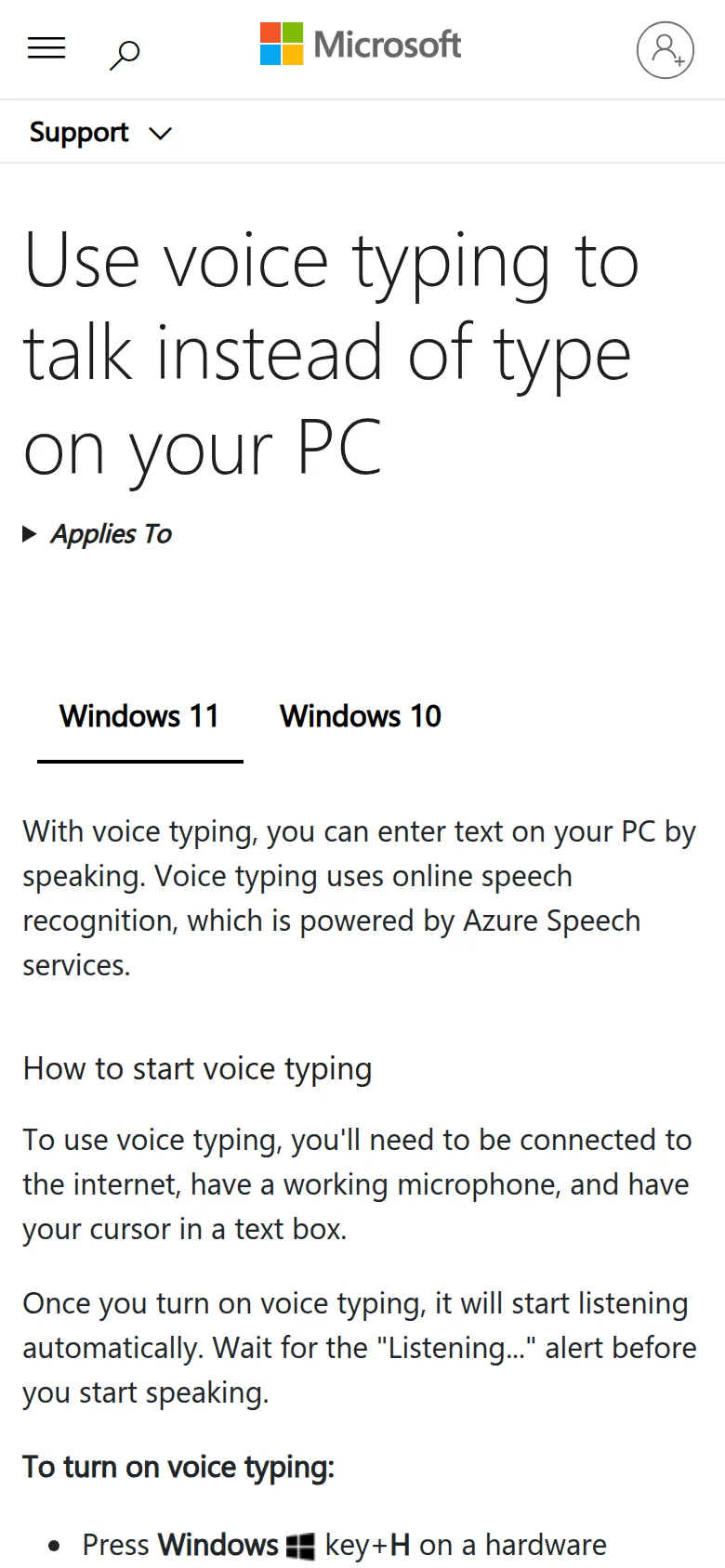
Voice typing is the quick option. There's nothing to install. According to Microsoft's voice typing guide, you need an internet connection, a working microphone, and your cursor in a text box.
- Click into a text box: an email, a chat message, a document or a search bar.
- Press Windows key + H. The voice typing bar opens and starts listening.
- Wait for the "Listening..." alert, then speak.
- To stop, say "stop listening" or click the microphone on the voice typing bar.
To move through the voice typing bar with the keyboard, press Windows key + Alt + H.
 Screenshot of support.microsoft.com, taken October 21, 2026.
Turn on automatic punctuation and the launcher
Click the gear icon on the voice typing bar. The settings are:
- Voice typing launcher: lets you start voice typing quickly whenever you're in a text box.
- Automatic punctuation: adds commas and full stops based on how you speak. Turn this on first. Without it, you say every punctuation mark out loud.
- Filter profanity, default microphone, and wait time before acting, which sets how long it waits before it runs a voice command. Set it longer if you speak slowly.
Change the voice typing language
Voice typing follows your keyboard input language. Add a language in Settings > Time & language > Language & region > Add a language, then switch with Windows key + Spacebar. Microsoft's voice typing guide lists 46 languages and regional variants for voice typing on Windows 11, including English (US, UK, India, Canada, Australia and New Zealand), Spanish, French, German, Hindi, Japanese and Portuguese.
Fluid dictation on Copilot+ PCs
On a Copilot+ PC, voice typing also has Fluid dictation. Microsoft says it fixes grammar, punctuation and filler words as you speak, using small language models that run on the device. It's English only and on by default once the model has downloaded. To undo one of its fixes, say "undo that" or press Ctrl + Z.
Windows voice typing commands
These are the English (US) commands from Microsoft's list. Say them while voice typing is listening.
| To do this | Say |
|---|---|
| Stop voice typing | "Stop listening", "Stop dictation" or "Pause voice typing" |
| Delete what you just said | "Delete that" or "Scratch that" |
| Select what you just said | "Select that" |
| Undo the last change | "Undo that" |
| Start a new line or paragraph | "New line" or "New paragraph" |
| Press a key | "Press Enter", "Press Backspace", "Press Tab" |
| Punctuation | "Comma", "Period", "Question mark", "Colon", "Open quotes" |
Commands differ by language. Microsoft's page has a list for each one.
How to dictate with Voice Access on Windows 11
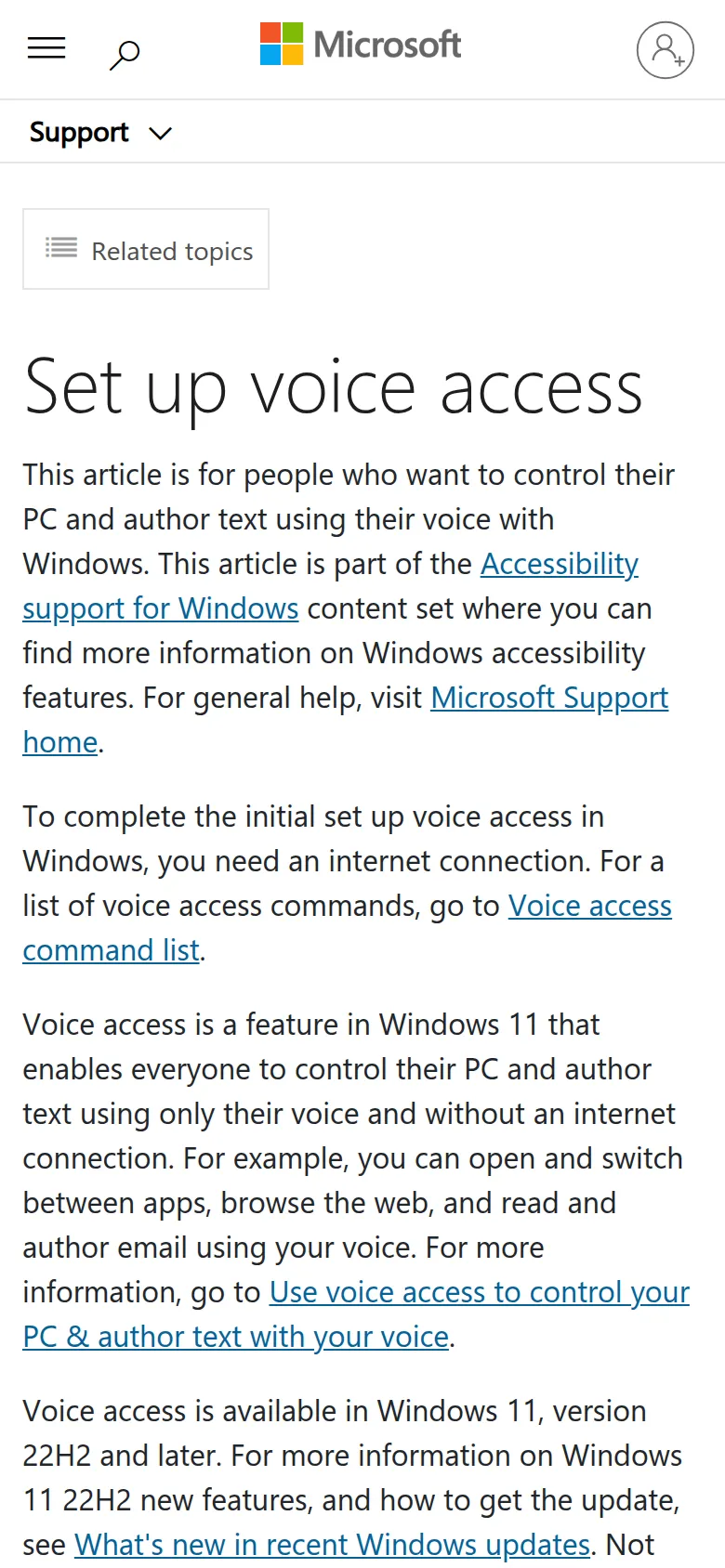
Voice Access is the bigger tool. It's built for people who want to run the whole PC by voice: open apps, click buttons, scroll, and dictate. It's also the built-in way to dictate offline. Microsoft's Voice Access setup guide says it works without an internet connection, once you've downloaded a language during setup.
- Open Start > Settings > Accessibility > Speech.
- Turn on Voice access. You can also tick the boxes to start it automatically before or after you sign in.
- On the welcome screen, pick your language and select Agree and continue. Voice Access downloads the files for on-device speech recognition. This step needs internet and can take a few minutes.
- Choose your microphone. The Voice Access bar appears at the top of the screen.
- Click into a text box and speak. Your words appear as text.
 Screenshot of support.microsoft.com, taken October 21, 2026.
Voice Access commands for dictation
From Microsoft's guides to getting started with Voice Access and dictating text with it:
- "Voice access wake up" or "Unmute" starts listening. "Voice access sleep" or "Mute" pauses it. Alt + Shift + B does both.
- "Dictation mode" treats everything you say as text to type, so nothing runs as a command. "Default mode" switches back.
- "Caps hello world" types "Hello World". "No space" joins words, which helps with usernames.
- "Spell out" opens a spelling window for names and email addresses.
- "Add to vocabulary" teaches it a word it keeps getting wrong.
Automatic punctuation is off by default in Voice Access. Turn it on from the Voice Access bar: Settings > Manage options > Turn on automatic punctuation.
Voice Access supports fewer languages than voice typing. The setup guide lists 15: six kinds of English, Spanish (Spain and Mexico), German, French (France and Canada), Simplified and Traditional Chinese, Japanese and Italian.
Voice typing vs Voice Access: where each falls short
| Voice typing (Win + H) | Voice Access | Blip AI | |
|---|---|---|---|
| Start it | Press Win + H in a text box | Settings > Accessibility > Speech | Hold Ctrl + Win, speak, let go |
| Needs internet | Yes, always | Only for setup | Blip Cloud by default; on-device models on Pro |
| Windows versions | Windows 11 (Windows 10 has older dictation) | Windows 11, 22H2 and later | Windows 10 and 11 |
| Languages | 46 languages and variants | 15 | Many (see the app) |
| Automatic punctuation | Yes, a setting | Yes, off by default | Yes |
| Removes filler words | Only with Fluid dictation (Copilot+ PCs, English) | Only with Fluid dictation (Copilot+ PCs, English) | Yes |
| Drafts a reply from a short instruction | No | No | Yes, Action Mode |
| Controls apps, clicks and scrolling | No | Yes | No, it's for writing |
| Cost | Included with Windows | Included with Windows 11 | Free plan: 2,000 words a month |
In short:
- Voice typing falls short when you're offline, when you want text that doesn't need cleaning up, or when you're dictating long pieces and saying every comma gets tiring.
- Voice Access falls short for casual dictation. It's a whole voice-control system with a bar fixed to the top of the screen, a setup step, and fewer languages. If you only want to type with your voice, it's more than you need.
- Neither cleans up your phrasing on its own. Microsoft lists filler-word and grammar fixes only as part of Fluid dictation (Copilot+ PCs, English).
If you need to control the mouse and windows by voice, because of RSI or a disability for example, Voice Access is the right tool, and it's free. Our guide to dictation for RSI and carpal tunnel covers that side.
Voice to text on Windows 10
On Windows 10, Windows key + H opens the older dictation toolbar. Microsoft's guide says it also needs an internet connection, its editing commands work in US English only, and basic dictation covers a short list of languages.
Voice Access isn't available on Windows 10. The older Windows Speech Recognition is on Microsoft's deprecated features list: it's no longer being developed and is being replaced by Voice Access. And Windows 10 support ended on October 14, 2025, so it won't get new features.
If you're staying on Windows 10, a dictation app is the way to get more than basic dictation. Blip AI runs on Windows 10 and 11.
How to get cleaner voice to text on Windows with Blip AI
The built-in tools type what you say. Blip AI types what you meant: it removes filler words, fixes punctuation and formatting, and puts the text into whatever app your cursor is in. Speaking runs at about 150 words per minute, against about 52 for the average typist, so cleaner text is what keeps the speed gain. More on that in is voice typing faster than typing?
- Download Blip AI for Windows and run the installer. The first time, Windows shows a blue "Windows protected your PC" screen: click More info, then Run anyway. Our Windows setup guide walks through it, plus the microphone permission.
- Click into any text box, hold Ctrl + Win, speak, and let go. The cleaned-up text appears at your cursor.
 Screenshot of blipai.app, taken October 21, 2026.
What you get on top of Windows' own tools:
- Hands-free mode. Press Ctrl + Win + Space to keep dictating without holding any keys.
- Action Mode. Start with "Hey Blip" and describe the reply you want, such as "Hey Blip, tell Sam the report will be ready Friday." Blip drafts the message instead of typing your words back.
- Offline when you want it. Blip Cloud is the default. On Pro you can download an on-device Whisper model that transcribes and cleans up text offline.
- Your history stays on your PC. Blip doesn't keep audio or transcripts on its servers.
The free plan includes 2,000 words a month. Pro is $15 a month, or $12 a month billed yearly, with a 7-day free trial (prices checked October 21, 2026). The hotkeys are configurable, and Blip also runs on Mac, Linux, iOS and Android.
Want to try dictation in your browser first? Our free speech to text tool runs in Chrome and Edge without installing anything. If you're comparing Windows dictation software, see our Dragon comparison and our roundup of Wispr Flow alternatives.
Why Win + H isn't working, and how to fix it
Work through these in order. Each comes from Microsoft's own guides.
- Check the internet connection. Voice typing doesn't work offline. Use Voice Access if you need to dictate without a connection.
- Click into a text box first. Voice typing only starts when the cursor is in a text field.
- Turn on online speech recognition. Voice typing runs on it. Go to Settings > Privacy & security > Speech and turn on Online speech recognition. Microsoft's speech privacy page says that with it off, only device-based features are available.
- Allow the microphone. On Windows 11, go to Settings > Privacy & security > Microphone and turn on Microphone access and Let desktop apps access your microphone.
- Close Voice Access. According to Microsoft's Voice Access FAQ, if Voice Access is running, Win + H shows a message telling you to dictate with Voice Access instead.
FAQ
Does Windows have built-in voice to text? Yes, two kinds. Voice typing opens with Windows key + H in any text box and needs internet. Voice Access, in Settings > Accessibility > Speech on Windows 11, dictates offline and also controls the PC by voice.
How do I turn on voice typing in Windows 11? Click into a text box and press Windows key + H. There's no switch to turn on first. To start it quickly from any text box, click the gear on the voice typing bar and turn on the voice typing launcher.
Does Windows voice typing work offline? No, voice typing needs an internet connection. Voice Access works offline on Windows 11 once it has downloaded a language during setup.
How do I add punctuation with Windows voice typing? Turn on automatic punctuation from the gear icon on the voice typing bar, or say the marks out loud: "comma", "period", "question mark", "new line". In Voice Access, automatic punctuation is off until you turn it on in Settings > Manage options.
What's the difference between voice typing and Voice Access? Voice typing only dictates text and needs internet. Voice Access dictates and controls the whole PC, works offline after setup, and needs Windows 11 version 22H2 or later.
Is Windows voice typing free? Yes. Voice typing and Voice Access are both included with Windows at no extra cost. A paid dictation app is worth it when you want filler words removed and cleaner text without fixing it by hand.
What is the best dictation software for Windows? Start with Windows key + H. It's free and good for short messages. Use Voice Access if you need to control the PC by voice or dictate offline. Choose a dictation app like Blip AI when you dictate a lot and want clean text in every app, or when you're still on Windows 10.