
Voice to Text in Google Docs: Steps, Shortcut and Limits
Use voice to text in Google Docs with Tools > Voice typing or Ctrl+Shift+S. Which browsers work, the voice commands, the limits, and what to use instead.
Quick answer: To use voice to text in Google Docs, open your document on a computer in Chrome, Edge or Safari. Click Tools > Voice typing (shortcut: Ctrl + Shift + S, or ⌘ + Shift + S on Mac), click the microphone and speak. Say "period" or "comma" for punctuation. Firefox isn't supported. On phones, use your keyboard's microphone.
We checked every step below against Google's help pages on October 21, 2026. One change most guides miss: Google no longer lists Chrome as the only browser.
How to turn on voice typing in Google Docs
The steps from Google's help page:
- Check your microphone. It needs to be on and working, and your browser needs permission to use it.
- Open a document in Google Docs in a supported browser (see the next section).
- Click Tools > Voice typing. A small box with a microphone appears.
- Click the microphone when you're ready, then speak clearly at a normal pace.
- Click the microphone again when you're done. You can also say "stop listening".
The keyboard shortcut is Ctrl + Shift + S on Windows and ChromeOS, or ⌘ + Shift + S on a Mac. Google's keyboard shortcuts page marks it as "available in Chrome browsers", so in Edge or Safari, use the Tools menu.
To fix a mistake, click the wrong word and correct it without turning the microphone off, then click back where you were. Right-click words underlined in gray to see Google's suggested alternatives.
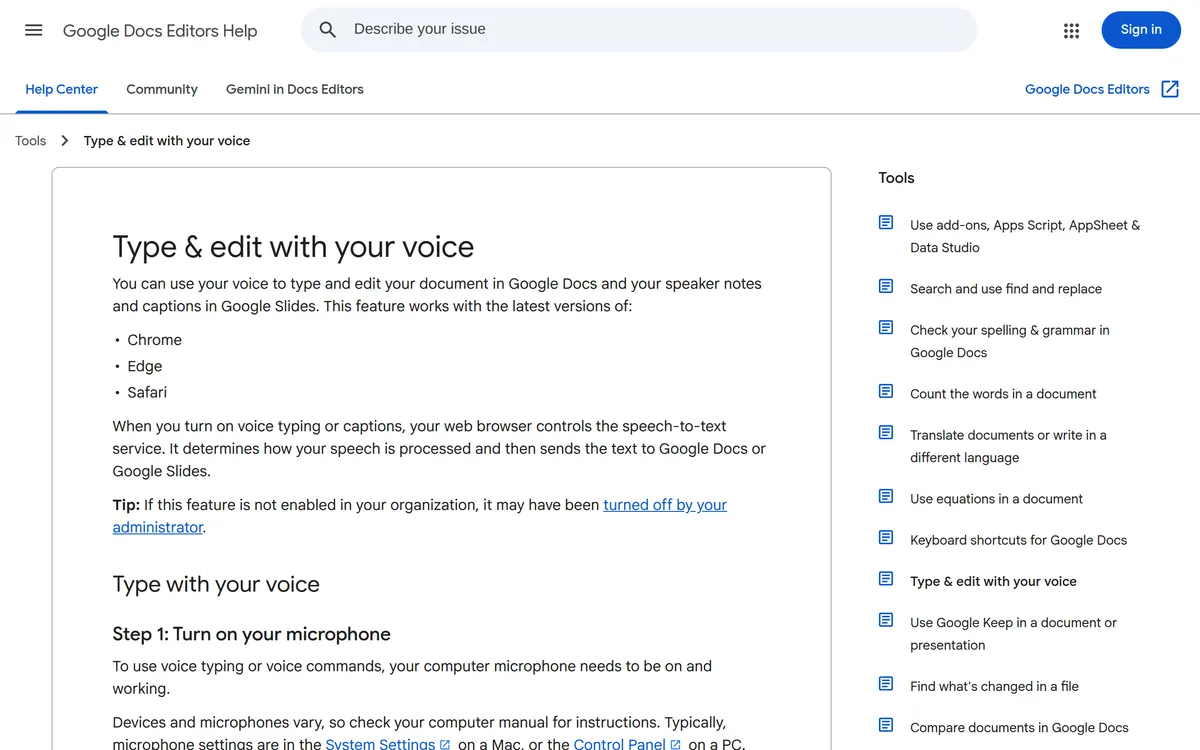 Screenshot of support.google.com, taken October 21, 2026.
Which browsers does Google Docs voice typing work in?
Google's help page says voice typing works with the latest versions of Chrome, Edge and Safari. Firefox isn't on the list.
Many guides still say Chrome only, and Google's shortcuts page still labels the shortcut as a Chrome feature. If you gave up on voice typing because you use Safari or Edge, try again from the Tools menu.
The help page adds a detail that matters: when you turn on voice typing, "your web browser controls the speech-to-text service." The browser decides how your speech is processed, then sends the text to Docs.
Google Docs voice commands: punctuation and editing
Voice typing types the words you say. Google's help page tells you to add punctuation by saying it:
- "Period", "comma", "exclamation point", "question mark"
- "New line", "new paragraph"
Beyond punctuation, you can edit and format by voice. A few that are worth learning first:
| Say this | What it does |
|---|---|
| "Select paragraph" or "select [word]" | Selects text |
| "Delete" | Deletes the word before the cursor |
| "Bold", "italics", "underline" | Formats the selection |
| "Create bulleted list" | Starts a bulleted list |
| "Apply heading 2" | Turns the line into a heading |
| "Go to the end of the line" | Moves the cursor |
| "Stop listening" | Turns voice typing off |
| "Resume" | Moves to the end of the paragraph and starts again |
| "Voice commands list" | Shows every command in the document |
Two catches from the same page: voice commands work only in English, and both your Google account language and the document language must be English. Punctuation commands may not work in every language either.
Voice typing itself covers more than 60 languages, with regional accents such as English (India) listed separately. The full list is on Google's help page.
Where Google Docs voice typing falls short
Voice typing comes with Google Docs and is fine for short notes. These are the limits you hit with longer writing.
Firefox isn't supported. Google lists Chrome, Edge and Safari only. In Firefox you need a different tool (see below).
Google lists the shortcut for Chrome only. Its shortcuts page marks Ctrl + Shift + S as available in Chrome browsers. In Edge or Safari, use Tools > Voice typing.
You have to speak your punctuation. Saying "comma" and "period" every few words breaks your train of thought, and long dictated paragraphs need a cleanup pass.
Google Slides gets speaker notes only. In Slides, the option is Tools > Dictate speaker notes. It types into the speaker notes, not onto the slides, and Google says voice commands aren't available there.
A work or school admin can turn it off. Google notes that if voice typing isn't enabled in your organization, your administrator may have switched it off.
It doesn't transcribe recordings. Voice typing listens to your microphone while you speak. There's no option to upload an audio file.
How to voice type in Google Docs on a phone or iPad
Google's voice typing steps are for Docs in a browser on a computer. In the Google Docs app on a phone or tablet, use the microphone on your keyboard instead. It types into Docs like any other text field.
- Android: with Gboard, tap into the document, tap the microphone at the top of the keyboard, and speak. Gboard also takes spoken punctuation ("period", "comma", "new line").
- iPhone and iPad: turn on Settings > General > Keyboard > Enable Dictation, then tap the microphone on the keyboard. In supported languages, Apple's dictation adds commas, periods and question marks for you, and it stops after 30 seconds of silence.
How to use voice to text in Google Docs in Firefox or on Linux
If Docs' own voice typing isn't available to you, use a tool that types into any text field. To these tools, a Google Doc is just another text box, so they work in Firefox too.
| Option | Works in Firefox | Punctuation | Where it types | Platforms |
|---|---|---|---|---|
| Google Docs voice typing | No | Spoken ("comma") | That Google Doc only | Chrome, Edge, Safari on a computer |
| Mac Dictation | Yes | Automatic in supported languages | Any app | Mac |
| Windows voice typing (Win + H) | Yes | Optional automatic punctuation | Any app | Windows |
| Blip AI | Yes | Added and cleaned up by AI | Any app | Mac, Windows, Linux |
On a Mac, turn on Dictation in System Settings > Keyboard, click into your document, and press the dictation shortcut or the microphone key (Apple's guide).
On Windows, click into the document and press Win + H. It needs an internet connection, and automatic punctuation is a setting you can turn on (Microsoft's guide).
On Linux, the main desktops don't ship dictation that works in every app, and Safari isn't available, so Docs voice typing means using Chrome. If you use Firefox, you need a dictation app. Our guide to voice typing on Linux covers the setup on X11 and Wayland, and we compared the options in the best dictation apps for Linux.
Just want to try speaking instead of typing without installing anything? Our free speech to text tool gives you a raw transcript in Chrome, Edge or Safari that you can copy into your document. It's a separate page, not a way of typing into Google Docs.
How to voice type in Google Docs with Blip AI
We build Blip AI, so take this section as our pitch. Blip is AI dictation that types polished text into any app: hold a key, speak, and let go. In Google Docs it works like this:
- Install Blip from the download page. It runs on Mac, Windows and Linux (an AppImage for Ubuntu, Debian, Fedora and Arch, on Wayland and X11).
- Click into your Google Doc in any browser, including Firefox.
- Hold Fn on a Mac, Ctrl + Win on Windows, or Ctrl + Super on Linux, and speak. Let go, and the text appears at your cursor. For long passages, add Space to the same keys for hands-free mode.
The difference from Docs voice typing is what lands in the document. Blip removes filler words and fixes punctuation and formatting, so you don't say "comma" out loud. You can add names and jargon to its dictionary so they're spelled right every time. And because it isn't tied to the Docs tab, the same shortcut works when you switch to Gmail, Slack or ChatGPT.
Blip Cloud transcribes by default, and Pro adds on-device Whisper models that work offline. Your history stays on your device, not on Blip's servers. Blip also has iOS and Android apps (Android setup). The free plan covers 2,000 words a month; Pro is $15 a month, or $12 a month billed yearly, with a 7-day free trial (pricing).
Our honest take: if you write in Chrome, in English, and only dictate into Google Docs, the built-in voice typing is already there and is enough. Pick a system-wide tool when you use Firefox or Linux, when speaking punctuation gets old, or when you want voice in every app. Speech runs at about 150 words per minute, against about 52 for the average typist (more on the research).
FAQ
How do I turn on voice to text in Google Docs? In Chrome, Edge or Safari on a computer, click Tools > Voice typing, then click the microphone and speak. Click it again, or say "stop listening", to stop.
What is the shortcut for voice typing in Google Docs? Ctrl + Shift + S on Windows and ChromeOS, and ⌘ + Shift + S on a Mac. Google lists the shortcut for Chrome; in Edge or Safari, open voice typing from the Tools menu.
Why is voice typing not showing in Google Docs? The usual reasons are an unsupported browser such as Firefox, Docs opened on a phone or tablet, or a work or school account whose administrator turned voice typing off. On a phone or iPad, use your keyboard's microphone.
Does Google Docs voice typing work in Firefox or Safari? Google's help page lists the latest Chrome, Edge and Safari, but not Firefox. In Firefox, use Mac Dictation, Windows voice typing (Win + H) or a dictation app such as Blip AI.
How do you add punctuation with Google Docs voice typing? Say it: "period", "comma", "question mark", "exclamation point", "new line" or "new paragraph". These may not work in every language, and editing commands are English only.
Can you use voice typing in the Google Docs app on a phone? Google Docs voice typing is a computer feature. In the Docs app, tap the microphone on your keyboard: Gboard on Android, or Dictation on an iPhone or iPad.
Can you voice type in Google Slides? Yes, but only into speaker notes. In Slides, click Tools > Dictate speaker notes. Voice commands don't work there.