
Chromebook Voice to Text: Turn On Dictation (2026 Steps)
Turn on voice to text on a Chromebook in Settings > Accessibility, then press Search + D. The voice commands, the limits, and what to use when they fall short.
Quick answer: To use voice to text on a Chromebook, press Alt + Shift + S, open Settings > Accessibility, and under "Keyboard and text input" turn on Dictation. Click where you want to type, then select the microphone or press Search + D. ChromeOS types what you say, and spoken commands like "comma" add punctuation.
We checked every step below against Google's Chromebook Help on October 25, 2026.
How to turn on voice to text on a Chromebook
These are the steps from Google's "Type text with your voice" page:
- Open Settings. Select the time at the bottom right, or press Alt + Shift + S.
- Go to Accessibility. Select Settings, then Accessibility.
- Turn on Dictation. It's under "Keyboard and text input".
- Click where you want to type. A document, an email, a search box.
- Select Speak (the microphone), or press Search + D. On a Chromebook with a Launcher key instead of a Search key, press Launcher + D.
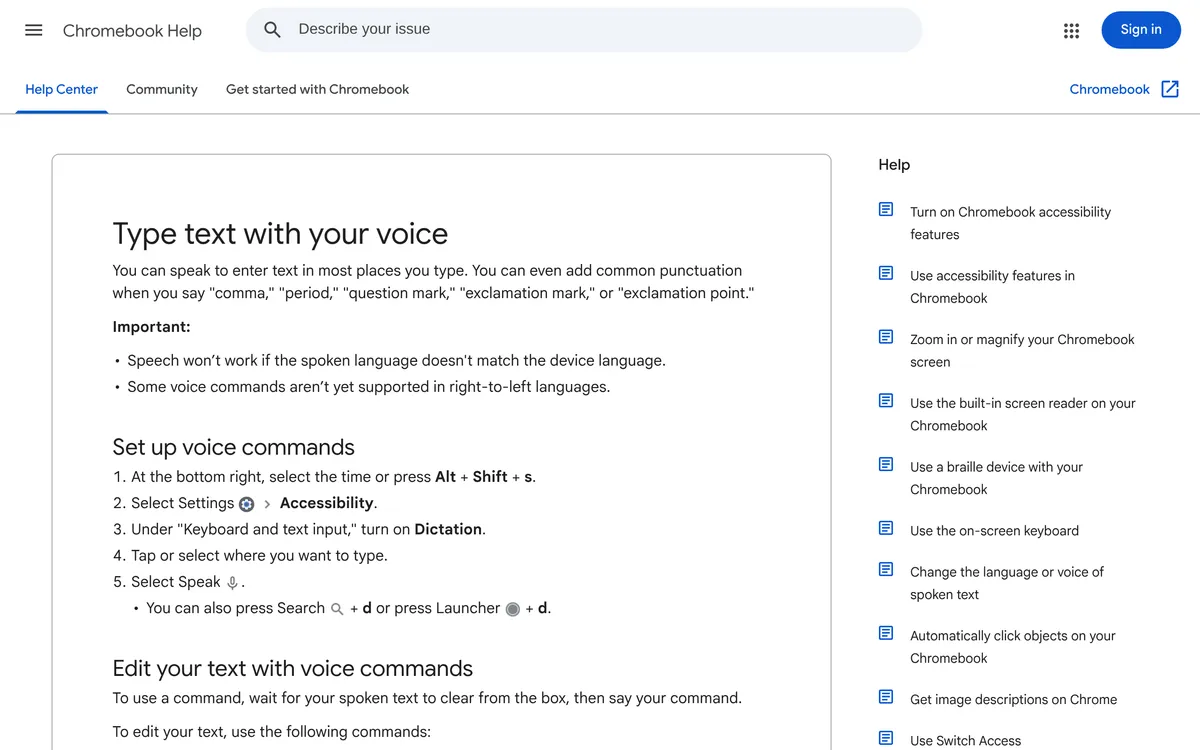 Screenshot of support.google.com, taken October 25, 2026.
Google says you can "speak to enter text in most places you type". That covers more than Google Docs, which has its own voice typing (see voice typing in Google Docs).
Chromebook dictation voice commands
Google's page lists these commands. Wait for your spoken text to clear from the box before you say one.
| What you want | Say |
|---|---|
| Punctuation | "comma", "period", "question mark", "exclamation mark" or "exclamation point" |
| Start a new line | "new line" |
| Select, cut, copy, paste | "select all", "cut", "copy", "paste" |
| Undo or redo | "undo", "redo" |
| Delete | "delete the previous character", "delete the previous word", "delete the previous sentence" |
| Delete a specific word | "delete [word or phrase]" (only works if it's before the cursor) |
| Stop dictating | "cancel" |
Google also lists newer commands, such as "delete all", "repeat", "move to the start" and "move to the end". They work only in English, French, German, Italian and Spanish.
Where Chromebook dictation falls short
Google's page names two limits:
- The language has to match the device. Google says speech won't work if the spoken language doesn't match the device language. If you write in more than one language, set the device language to the one you're dictating in.
- Right-to-left languages have gaps. Google says some voice commands aren't yet supported in right-to-left languages.
We didn't find offline use mentioned on Google's page, so test it before you rely on it on a plane. The commands it lists cover punctuation and editing; we found nothing about removing filler words, so plan to clean those up yourself.
Other ways to voice type on a Chromebook
- Google Docs voice typing. In Docs, Tools > Voice typing has its own commands. The shortcut is Ctrl + Shift + S on ChromeOS. Steps and limits are in our Google Docs voice typing guide.
- A free in-browser tool. Our speech to text tool runs on your browser's speech recognition, works in Chrome, Edge and Safari, and sends nothing to Blip. You get the raw transcript, without Blip's cleanup.
- A dictation app. Our dictation app comparison covers the paid options. Check each vendor's own site for Chromebook support before you pay.
How to voice type on a Chromebook with Blip AI
We build Blip AI, so weigh this section accordingly. ChromeOS Dictation is free and built in, and for a quick email it may be all you need.
Blip AI works on Chromebooks. It's dictation with AI cleanup: you hold a key, speak and let go, and Blip types polished text, with filler words removed and punctuation fixed, into the app you're in. Start with "Hey Blip" and Action Mode drafts the email or Slack message you describe instead of transcribing word for word.
We haven't confirmed install steps for a Chromebook yet, so we're not giving them here. Start from the download page. The free plan covers 2,000 words a month, and Pro has a 7-day free trial (see pricing).
FAQ
How do I turn on voice to text on a Chromebook? Press Alt + Shift + S, open Settings > Accessibility, and turn on Dictation under "Keyboard and text input". Then select the microphone or press Search + D wherever you want to type.
What is the shortcut for dictation on a Chromebook? Search + D, or Launcher + D if your keyboard has a Launcher key. Google's page also says you can select Speak (the microphone icon) instead.
How do I add punctuation when dictating on a Chromebook? Say it: "comma", "period", "question mark", "exclamation mark" or "exclamation point". Google's page doesn't list other punctuation, so type anything else.
Why is dictation not working on my Chromebook? Google says speech won't work if the spoken language doesn't match the device language, so check that first. Also confirm Dictation is on in Settings > Accessibility and that your microphone works.
Can I voice type in Google Docs on a Chromebook? Yes. Docs has its own voice typing under Tools > Voice typing, with Ctrl + Shift + S as the shortcut in Chrome. ChromeOS Dictation also works in most text fields.
Does Blip AI work on a Chromebook? Yes, Blip AI works on Chromebooks. Start from the download page; install steps for a Chromebook aren't confirmed yet.