
Voice to Text on Android: Gboard and Samsung Steps (2026)
Turn on voice to text on Android: tap the mic on Gboard or the Samsung keyboard, say your punctuation, and know the limits. Plus a floating-mic option.
Quick answer: To use voice to text on Android, tap a text field, then tap the microphone on your keyboard (at the top of Gboard, or on the Samsung Keyboard's toolbar) and speak. Say "comma" or "period" for punctuation. Samsung's tablet guide says you can pick Google Voice Typing under Voice input in the keyboard settings.
We checked every step below against Google's and Samsung's own help pages on October 27, 2026.
How to use voice to text on Android with Gboard
These steps come from Google's "Type with your voice" page, which covers Gboard:
- Install Gboard from Google Play if your phone doesn't have it. Google says some steps work only on Android 7.0 and up.
- Open any app you can type in, such as Gmail or Keep.
- Tap where you want the text to go.
- Tap the microphone at the top of the keyboard.
- Say what you want written when you see "Speak now".
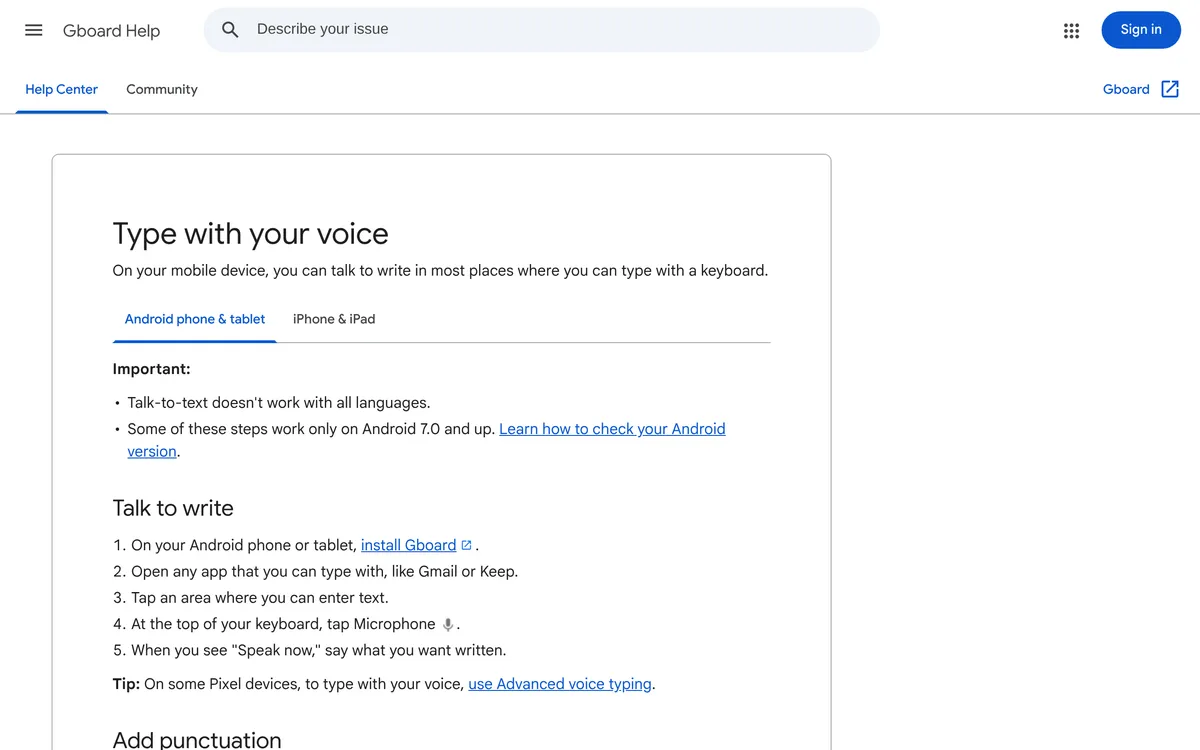 Screenshot of support.google.com, taken October 27, 2026.
Google's page also says talk-to-text doesn't work with all languages. To replace one word, touch and hold it, tap the microphone and say the new word.
How to add punctuation by voice on Android
Google's page lists these spoken punctuation commands: "period", "comma", "exclamation point", "question mark", "new line" and "new paragraph". Google notes that punctuation may not be available in every language.
On Gboard you can say the punctuation as you go. On a Pixel 8 or later in the US, Google's Fix it command can also correct punctuation (see Pixel advanced voice typing below).
How to use voice to text on a Samsung Galaxy
Galaxy phones use the Samsung Keyboard, which has its own voice input. Samsung's Galaxy Tablet keyboard guide describes it this way for tablets, and the phone page below gives matching steps:
- Tap a text field so the keyboard opens, then tap the microphone icon on the keyboard toolbar.
- Allow permissions and agree to the terms in the pop-up the first time.
- Tap the microphone again and speak. Your words are converted to text.
- Tap the microphone once more to pause.
For tablets, Samsung says voice input is on by default and built into the Samsung Keyboard. To change it, tap the Settings icon on the keyboard toolbar and then Voice input. You can choose Samsung voice input or Google Voice Typing there.
Samsung's Canada support page gives a different path on phones: Settings > General management > Keyboard list and default, then switch on Samsung voice input (if required). It says to touch and hold the microphone, speak, and release it when you're done, and to make sure only one voice assistant is active on the phone. Samsung says those steps apply only to the default Samsung Keyboard, and that screens and settings may vary for smartphones sold in other countries, so if your menu looks different, try searching the Settings app for "voice input".
Pixel advanced voice typing
Some Pixel phones have a newer mode. Google says Advanced voice typing needs a Pixel 6 or later. To turn it on, tap a text field, tap Settings at the top of the keyboard, tap Voice typing, and switch on Advanced voice typing features.
According to Google's advanced voice typing page:
- It works in English, French, German, Italian, Japanese and Spanish.
- Double-tap the keyboard mic to keep it on for several messages. Tap the mic, close the keyboard or say "Stop" to end it.
- Commands include "Delete last word", "Clear" (the last sentence), "Clear all", "Send" and "Next".
- "Fix it", which corrects typos, grammar and punctuation, needs a Pixel 8 or later, English, the United States and a network connection.
Gboard, Samsung Keyboard and Pixel advanced voice typing compared
| Gboard | Samsung Keyboard | Pixel advanced voice typing | |
|---|---|---|---|
| Start | Tap the mic at the top of the keyboard | Tap the mic on the keyboard toolbar | Tap the keyboard mic |
| Settings path | None needed in Google's steps | Keyboard toolbar Settings > Voice input | Keyboard Settings > Voice typing > Advanced voice typing features |
| Device | Android phone or tablet; some steps need Android 7.0+ | Samsung Keyboard | Pixel 6 or later |
| Languages | Not all languages | Not stated on the pages we checked | English, French, German, Italian, Japanese, Spanish |
If you just want to dictate a quick message, use the mic your keyboard already has.
Where built-in Android voice typing falls short
From what Google's and Samsung's pages say:
- Not every language is covered. Google says talk-to-text doesn't work with all languages, and Advanced voice typing lists six.
- The best features depend on the phone. Fix it and detailed edits are limited to newer Pixels in English.
- Menus differ by phone. Samsung's own pages give two different paths, and Google's Pixel mode has its own switch.
- Punctuation by voice varies. On Gboard you say it using Google's command list, and punctuation may not be available in every language.
We didn't find a mention of offline use on either page, so test your phone in airplane mode before you rely on it.
Another way: Blip AI's floating mic on Android
We build Blip AI, so weigh this section accordingly. For a quick message, Gboard or the Samsung keyboard may be all you need.
Blip AI has an Android app on Google Play. With System-Wide Voice on, a floating microphone appears whenever you tap into a text field, in any app. Tap it, speak, tap it again, and the text is typed into the field. Blip's AI cleanup removes filler words and fixes punctuation, and starting with "Hey Blip" makes Action Mode draft the reply you describe instead of transcribing it word for word.
Setup takes about three minutes: you allow the microphone, Accessibility and "Display over other apps". The full steps, including the battery settings for Samsung, Pixel, Xiaomi and other brands, are in the Android setup guide. The free plan covers 2,000 words a month, and Pro has a 7-day free trial (see pricing).
If you're comparing paid apps, our dictation app comparison covers them. On a laptop, see voice to text on a Chromebook, and for the typing-speed research, is voice typing faster than typing.
FAQ
How do I turn on voice to text on Android? Tap a text field, then tap the microphone on your keyboard: at the top of Gboard, or on the Samsung Keyboard's toolbar. On Gboard you'll see "Speak now". On a Samsung phone you may need to allow permissions the first time.
How do I add punctuation with voice typing on Android? Say it. Google's Gboard page lists "period", "comma", "exclamation point", "question mark", "new line" and "new paragraph". Google notes punctuation may not be available in all languages.
How do I turn on voice typing on a Samsung phone? Samsung's phone page gives the path Settings > General management > Keyboard list and default, where you switch on Samsung voice input (if required). Then tap the microphone on the keyboard toolbar and speak. Samsung's tablet guide says voice input is on by default.
Can I use Google Voice Typing on a Samsung device? Samsung's tablet guide says you can choose Samsung voice input or Google Voice Typing under Voice input in the Samsung Keyboard settings, and its phone page lists Google voice typing as a second built-in option.
What is Advanced voice typing on Pixel? It's a Gboard mode for Pixel 6 and later that adds commands like "Delete last word" and "Clear all". Google lists English, French, German, Italian, Japanese and Spanish as supported languages.
Does Blip AI work on Android? Yes. Blip AI has an Android app on Google Play with a floating mic that works in any app with a text field. The steps are in the Android setup guide.