
Voice to Text in Microsoft Word: Dictate, Win+H and Apps
Voice to text in Microsoft Word: use the Dictate button (Microsoft 365), Win + H on Windows, or Blip AI. Steps, commands and limits, checked October 2026.
Quick answer: To use voice to text in Microsoft Word, open a document, go to Home > Dictate, wait for the button to turn on, and speak. Dictate needs a Microsoft 365 subscription, a microphone and a reliable internet connection. Without Microsoft 365, press Windows key + H on Windows, or use a dictation app such as Blip AI.
Word has more than one way to turn speech into text, and they differ on price, platform and what happens when you pause. This guide covers each one, with the limits Microsoft's own pages state. We build Blip AI, a dictation app that works in Word, so we'll say when the built-in option is enough.
How to use voice to text in Word with Dictate
Dictate is the button built into Word. Microsoft's Dictate your documents in Word page says it's for Microsoft 365 subscribers and lists Word for Microsoft 365 on Windows and Mac, plus Word 2024, 2021, 2019 and 2016.
- Open a new or existing document, signed in to Microsoft 365 on a device with a microphone.
- Go to Home > Dictate.
- Wait for the Dictate button to turn on and start listening.
- Speak. Your words appear in the document.
On a Mac, Microsoft lists Option + F1 as the shortcut to start dictation.
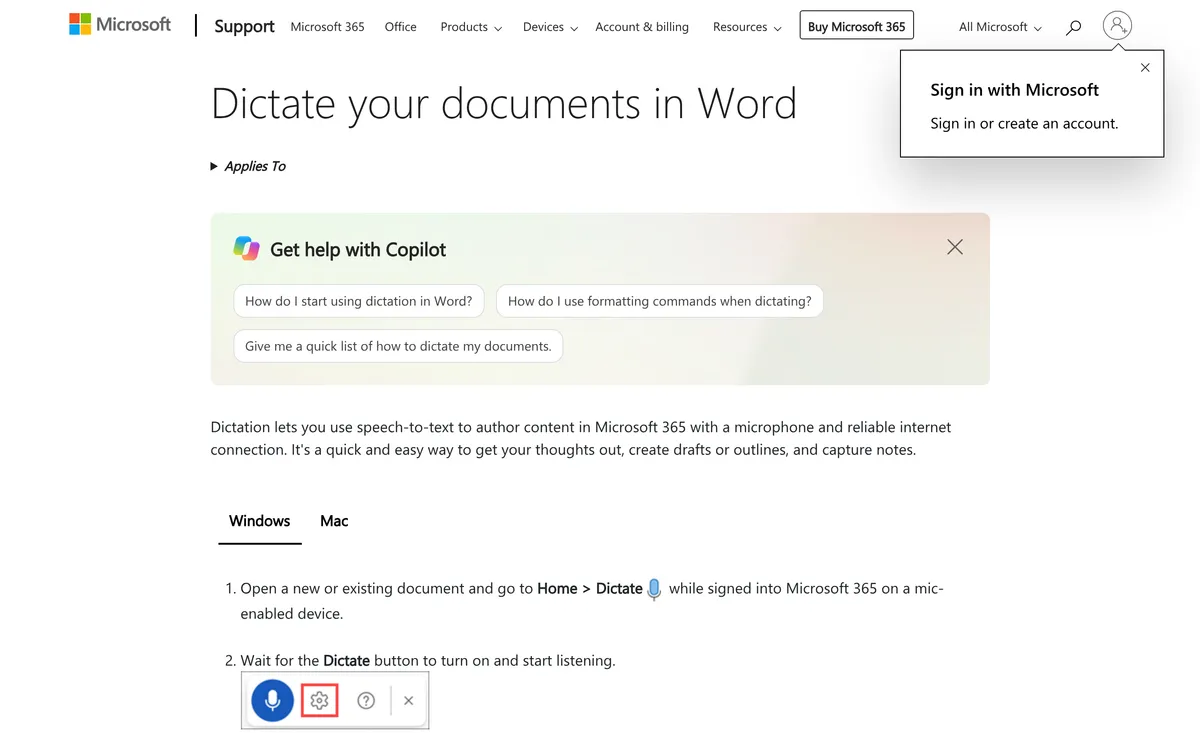 Screenshot of support.microsoft.com, taken October 29, 2026.
Dictate in Word for the web
Word for the web has its own page, Dictate your documents in Word for the web. The steps are the same: Home > Dictate, select the button, speak, then select Dictate again when you're done. If the browser asks, give it permission to use your microphone. The page says speech is sent to Microsoft to produce the text.
Change the Dictate language and turn on automatic punctuation
By default, Dictate uses your document's language. On the web, select the gear icon and use the Spoken Language drop-down. The settings also include Auto Punctuation, which the page says you can switch on or off "if it's available for the language chosen". Microsoft marks some languages, such as Arabic, Hebrew, Korean, Russian and Thai, as preview languages that "may have lower accuracy or limited punctuation support".
Word dictation commands
Microsoft's page groups the spoken commands by type. These examples are from its English lists:
| To do this | Say |
|---|---|
| Start a new line | "New line" |
| Add a question mark | "Question mark" |
| Delete the last thing you said | "Delete that" or "Scratch that" |
| Undo | "Undo" |
| Select the last thing you said | "Select that" |
| Format text | "Bold that", or "bold tomorrow" for a word you already dictated |
| Start a bulleted list | "Create bullet list" (say "exit list" to end it) |
| Add a comment | "Insert comment" or "Add comment" followed by the comment text |
| Pause or stop | "Pause dictation", "Stop dictation" |
| Resume | "Resume dictation", or press Alt + `, or select the microphone icon on the floating dictation menu |
Saying "delete" by itself removes the last word or punctuation before the cursor. Say "show commands" while dictating to open the full list in Word. The page also lists symbols, math, currency and emoji commands, and other languages have their own lists.
Voice to text in Word without Microsoft 365
Microsoft's page says Dictate "is not available in Office 2016 or 2019 for Windows without Microsoft 365". Two options work without it.
Windows voice typing (Win + H). Click into the Word document and press Windows key + H. It types wherever your cursor is, so Word is covered. Microsoft's voice typing guide says it needs an internet connection and a microphone. Our voice to text on Windows guide covers its commands, Voice Access for offline dictation and Windows 10.
macOS Dictation. On a Mac, the system's own dictation works anywhere you can type, per Apple, which includes a Word document. Our speech to text on Mac guide has the steps and limits.
If your document is in Google Docs instead, see voice typing in Google Docs.
Dictate vs Win + H vs Blip AI in Word
| Word Dictate | Windows voice typing (Win + H) | Blip AI | |
|---|---|---|---|
| Where it works | Word (Windows, Mac and web) | Any text box on Windows | Any app with a text field, on Mac, Windows, Linux, iOS and Android |
| Needs / cost | Microsoft 365 subscription, microphone, internet | Internet, microphone | Free plan: 2,000 words a month; Pro is paid |
| Start it | Home > Dictate (Mac: Option + F1) | Windows key + H | Hold Fn (Mac) or Ctrl + Win (Windows), speak, let go |
| Commands and cleanup | Spoken formatting: bold, lists, comments | Editing and punctuation commands | Removes filler words, fixes punctuation; drafts replies with Action Mode |
| Processing | Speech sent to Microsoft | Needs internet | Blip Cloud by default; on-device models on Pro |
Pick Dictate if you already pay for Microsoft 365 and want to format by voice inside Word. Pick Win + H if you want a free option on Windows. A dictation app is worth it when you also write in email, Slack and the browser and want one tool everywhere.
Where Word's Dictate falls short
These are limits Microsoft's own pages state:
- It needs Microsoft 365. Word 2016 and 2019 without a subscription don't have it.
- It needs a reliable internet connection. The page's accuracy advice starts with a fast, reliable connection.
- It's a Word feature. Microsoft's page describes dictating in Word documents, so it's not a way to dictate into your email, chat or browser.
- Some words are flagged. Words with alternates that Microsoft's service may have misheard are marked, and you can select Ignore if one is correct.
- It's grayed out in read-only documents. Dictate can't type into a file you can't edit.
Dictate is also not Word's Transcribe, which is a separate feature for turning recorded or uploaded audio into text. Microsoft documents it on its own Transcribe page.
How to use Blip AI for voice to text in Word
Blip AI types polished text into the app your cursor is in, Word included, and it doesn't depend on a Microsoft 365 plan. It removes filler words and fixes punctuation as you speak. Speaking runs at about 150 words per minute, against about 52 for the average typist, and clean text is what keeps that speed gain. More in is voice typing faster than typing?
- Download Blip AI for Mac or Windows and sign in.
- Click into your Word document.
- Hold Fn on Mac or Ctrl + Win on Windows, speak, and let go. The text appears at the cursor.
Both keys are configurable. Add Space to the same keys for hands-free mode. The free plan covers 2,000 words a month, and Pro adds unlimited dictation after a 7-day free trial. To draft an email reply instead of transcribing word for word, start with "Hey Blip" and describe the reply. Our guide to dictating emails in Gmail and Outlook shows that workflow.
FAQ
Does Word have voice to text? Yes. Word's Dictate button, on the Home tab, turns speech into text. Microsoft's support page says dictation is only available to Microsoft 365 subscribers and needs a microphone and a reliable internet connection.
How do I turn on dictation in Word? Open a document, go to Home > Dictate and wait for the button to turn on. On a Mac, press Option + F1. In Word for the web, select Dictate, speak, then select it again when you're done.
Why is Dictate grayed out or missing in Word? Microsoft's page lists two causes: the document is read-only, or you're using Office 2016 or 2019 for Windows without Microsoft 365. It also says to check that you have Windows 10 or above.
Can I use voice to text in Word for free? Yes, with Windows voice typing: press Windows key + H with your cursor in the document. On a Mac, use the system's Dictation. Dictate itself needs a Microsoft 365 subscription.
What are the voice commands for Word dictation? Examples are "new line", "delete that", "undo", "bold that", "create bullet list", "insert comment" and "pause dictation". Say "show commands" while dictating to see the list.
Can I dictate in Word offline? Dictate needs an internet connection according to Microsoft's page. On Windows 11, Voice Access can dictate offline once its language files are downloaded, as our Windows voice to text guide explains.