
Speech to Text in Chrome: Talk to Type and an Easier Way
Chrome has speech to text built in: right-click a text box and pick Talk to Type. The steps, the shortcut, the limits, and one key that works in every app.
Quick answer: Chrome has speech to text built in, called talk to type. On a computer, right-click any text box, choose Talk to Type and speak. You have to be signed in to Chrome and not in an Incognito window. I skip the menu and use Blip AI: hold one key and talk, in any browser and any app.
I'm Ayush, and I build Blip AI, so weigh my pick with that in mind. The Chrome steps are from Google's help page, Use talk to type in Chrome, checked on 14 November 2026.
How do I turn on speech to text in Chrome?
On a computer, signed in to Chrome, with microphone access allowed:
- Click inside the text box you want to fill. Google says it can be any text box on the web.
- Right-click and choose Talk to Type.
- The first time, Chrome asks you to opt in. Read the prompt and agree if you're happy with it.
- Speak. A bar with a waveform shows Chrome is listening.
- Click Done when you've finished.
Google says talk to type runs on Gemini, cleans up your speech and adds punctuation for you.
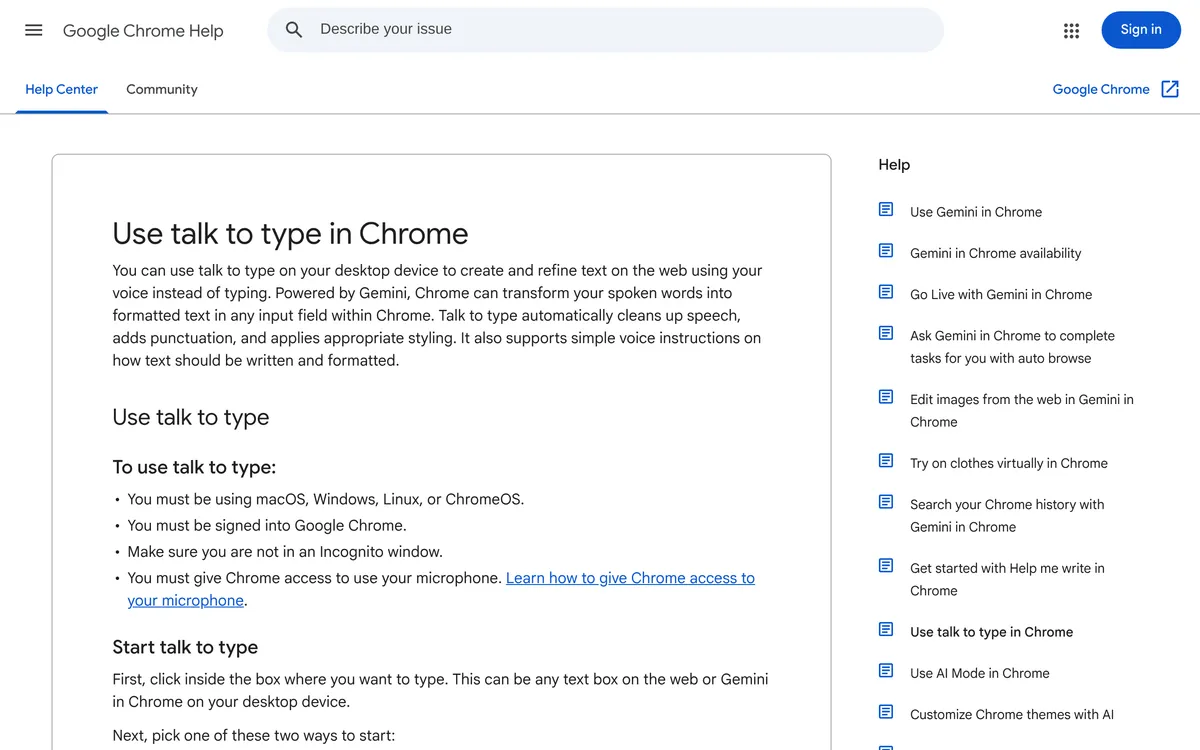 Screenshot of support.google.com, taken 14 November 2026.
What's the Chrome speech to text shortcut?
- Mac: Option + Space
- Windows and ChromeOS: Ctrl + Space
There's a catch. Google's page says the first time has to go through the right-click menu. The shortcut works after that. Press it again to stop. The page lists no shortcut for Linux, so use the right-click menu there.
What are the limits of talk to type?
The first four are on Google's help page. The last one follows from it:
- You must be signed in to Chrome. It doesn't work in an Incognito window.
- It's desktop only: macOS, Windows, Linux or ChromeOS.
- Chrome collects data to run it. The page lists your voice recording, the words you typed and details of the page.
- Switching tabs stops it. What you already said is written into the box you started in.
- It only types inside Chrome. Google describes it as working in any input field within Chrome, so it won't type into Slack's desktop app, Word or your terminal.
If you want built-in tools for one place, we have guides for those too: voice typing in Google Docs, voice to text on Windows, on a Mac and on a Chromebook.
The easy way: one key, every browser and every app
I don't like right-click menus. So I use one key for everything:
- Download Blip AI and open it.
- Click where you want to type, in Chrome or anywhere else.
- Hold Fn on a Mac, or Ctrl + Win on Windows and Linux. Talk. Let go.
Your words appear where your cursor is, with the filler words removed and the punctuation fixed.

It works the same in Chrome, Edge, Firefox and Safari, and in the apps outside your browser, like Slack, Notion and Cursor. Nothing to switch on per site.
It's free to start, with 2,000 words a month. Blip Cloud does the transcribing by default, and your history is stored on your device, not on Blip's servers.
If you don't want to think about menus at all, download Blip AI and hold the key.
Talk to type or Blip AI: which should you use?
| Chrome's talk to type | Blip AI | |
|---|---|---|
| Where it types | Text boxes inside Chrome | Any app with a text field, in any browser |
| How you start | Right-click menu the first time, then Option + Space or Ctrl + Space | Hold Fn (Mac) or Ctrl + Win (Windows, Linux) |
| What it needs | A signed-in Chrome, not Incognito | The Blip AI app |
| Cleanup | Cleans up speech and adds punctuation; can also rewrite text you highlight (not yet in Google Workspace apps such as Docs) | Removes filler words and fixes punctuation |
| Your audio | Chrome collects your voice recording, typed words and page details | Sent to Blip Cloud to be transcribed; not stored on Blip's servers |
Chrome's column is from Google's help page, checked 14 November 2026. Blip AI's column is from our own product.
Use talk to type if you do all your writing in Chrome and you're signed in anyway. It's built in and it cleans up your text.
Use Blip AI if you also write outside Chrome, use another browser, or just want one key that works everywhere.
FAQ
Does Chrome have built-in speech to text? Yes. Google's help page calls it talk to type: right-click a text box in Chrome on a computer, choose Talk to Type and speak. You need to be signed in to Chrome, outside Incognito, with microphone access allowed.
What is the shortcut for speech to text in Chrome? Option + Space on a Mac, and Ctrl + Space on Windows and ChromeOS. Google's page says your first use has to start from the right-click menu; the shortcut works after that.
Does talk to type work in Incognito? No. Google's help page says to make sure you are not in an Incognito window, and that you must be signed in to Chrome.
Do I need a Chrome extension for speech to text? No. Talk to type is part of Chrome. Blip AI is a desktop app, so it types into Chrome the same way it types into any other app.
How do I use speech to text in other browsers? Talk to type is a Chrome feature. For Edge, Firefox or Safari, I use Blip AI: hold Fn on a Mac or Ctrl + Win on Windows and Linux, and it types into whichever text field has focus.